Authentication
You can authenticate with the Dropbox Sign API in two ways: using an API key or an access token issued through an OAuth flow.
Try it console auth
The “Try it console”, used for sending live API calls from these docs, only supports authenticating with your API key.
API Key
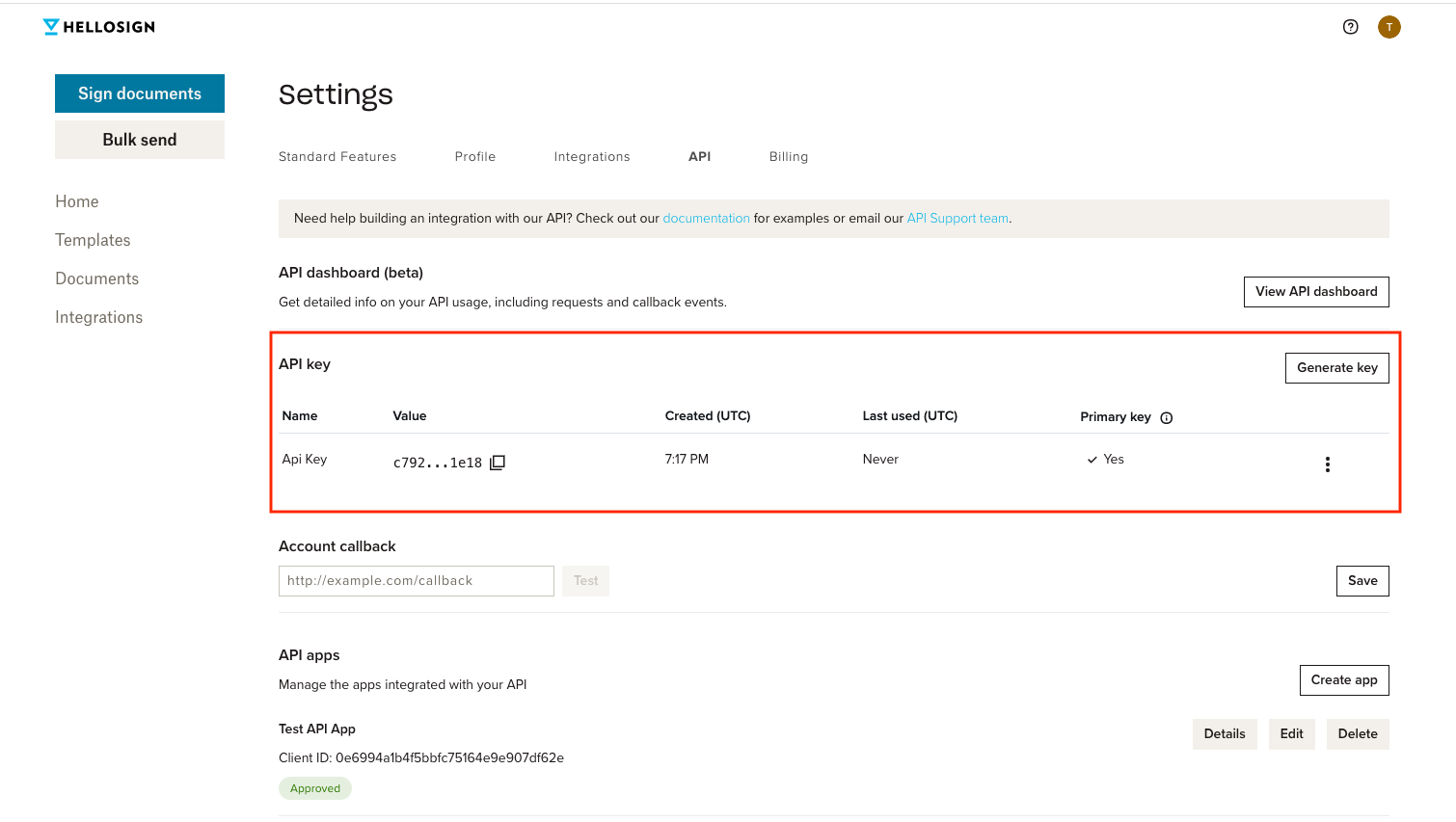
The most common method of authenticating against the Dropbox Sign API is by using API keys, which can be retrieved from the API tab of your API Settings page.This approach uses a “Basic” HTTP Authentication Scheme where the API key is passed as the username and the password is left blank. Example (note the trailing ”:” after the API key):
Alternatively, you can pass the API key as part of the URL:
Security Scheme Type: HTTP HTTP Authorization Scheme: Basic
Access Token
You can use an access token (issued during an OAuth flow) to send API requests on behalf of the user that granted authorization.
Passed as in the header of a request as an Authorization parameter using the following format: Bearer <access_token>.
Security Scheme Type: HTTP HTTP Authorization Scheme: Basic Bearer format: base64 encoded string
Notes about OAuth The permissions applied to access tokens are controlled by the access scopes set in your API app. Those scopes are shown to the end-user completing an OAuth flow. Please refer to our OAuth Walkthrough for additional information.
Multiple API Keys
In order to allow rotating API keys, the Dropbox Sign API supports the creation of multiple API keys. Periodically rotating the API key used in your integration is a good security practice that helps protect your users.
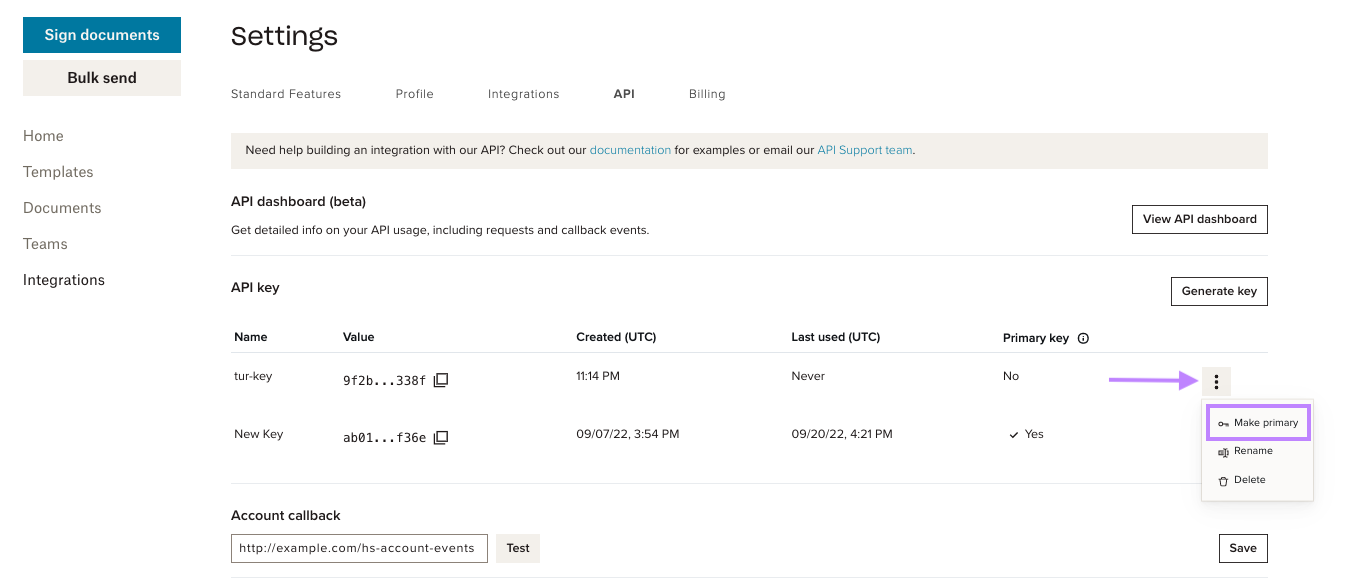
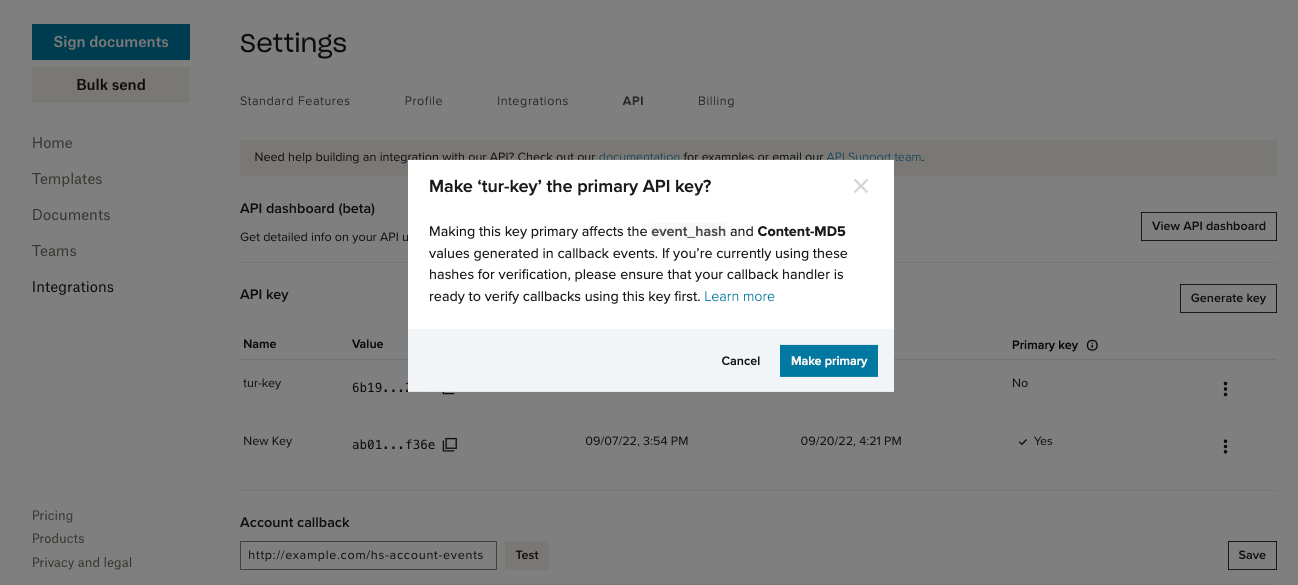
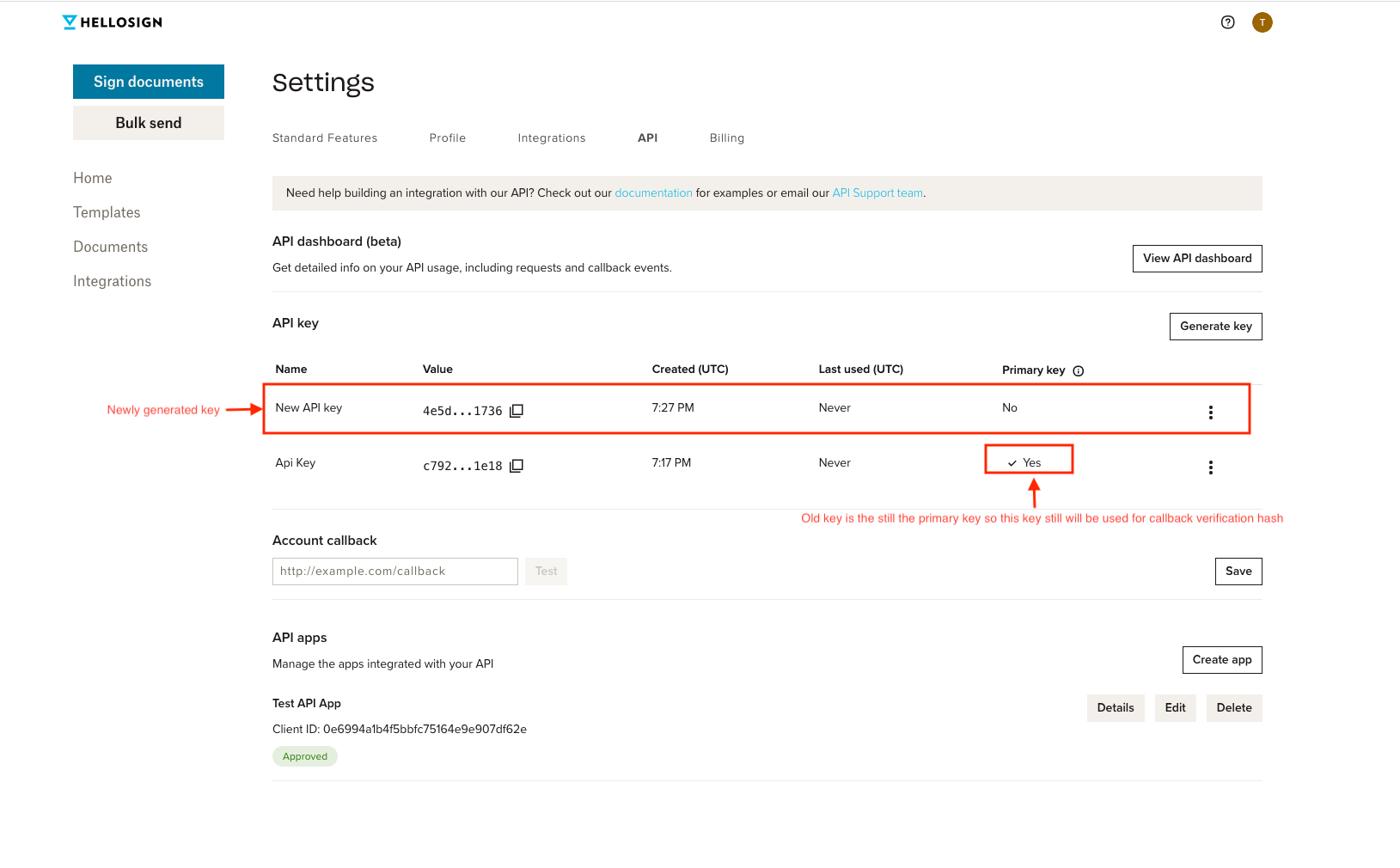
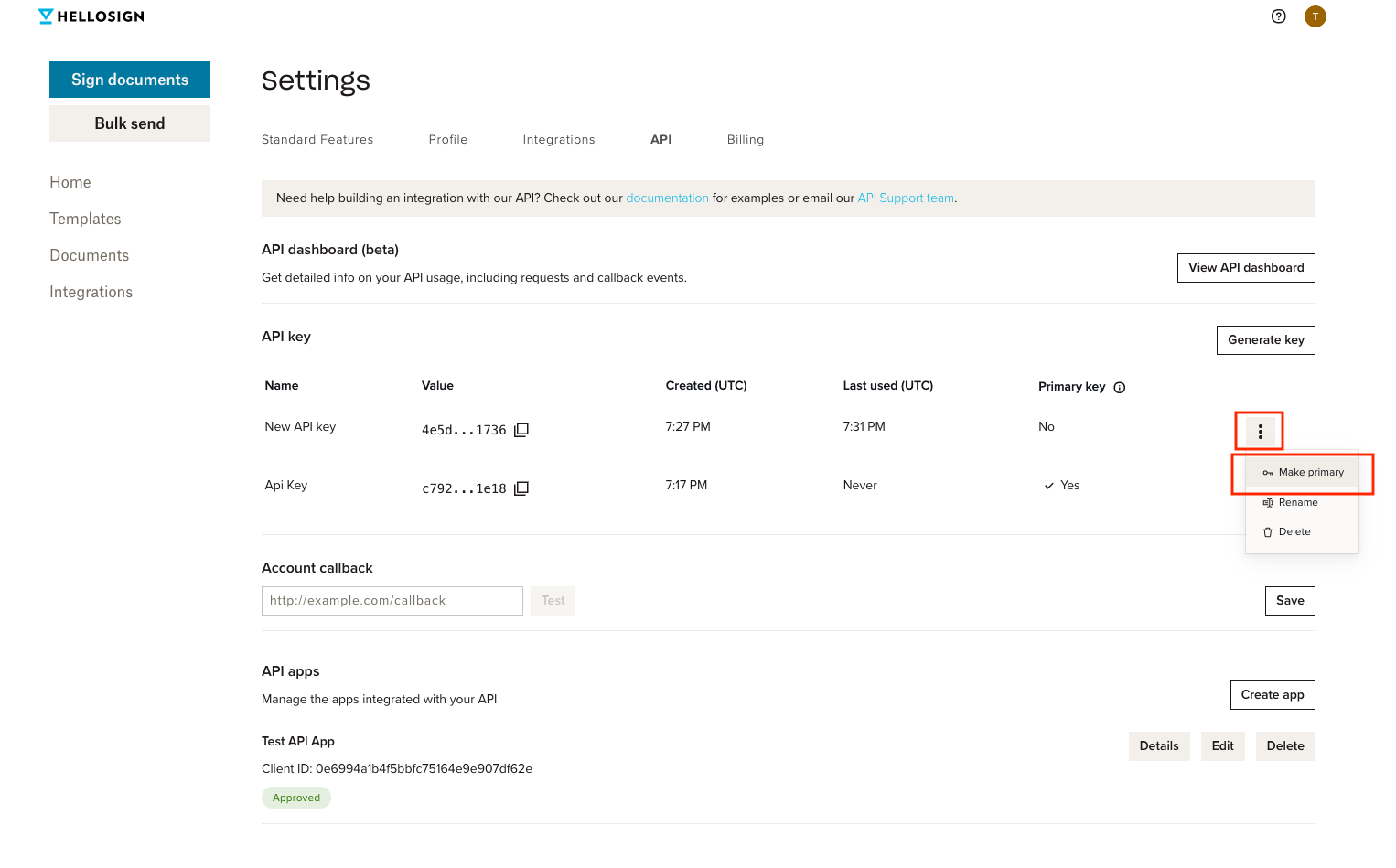
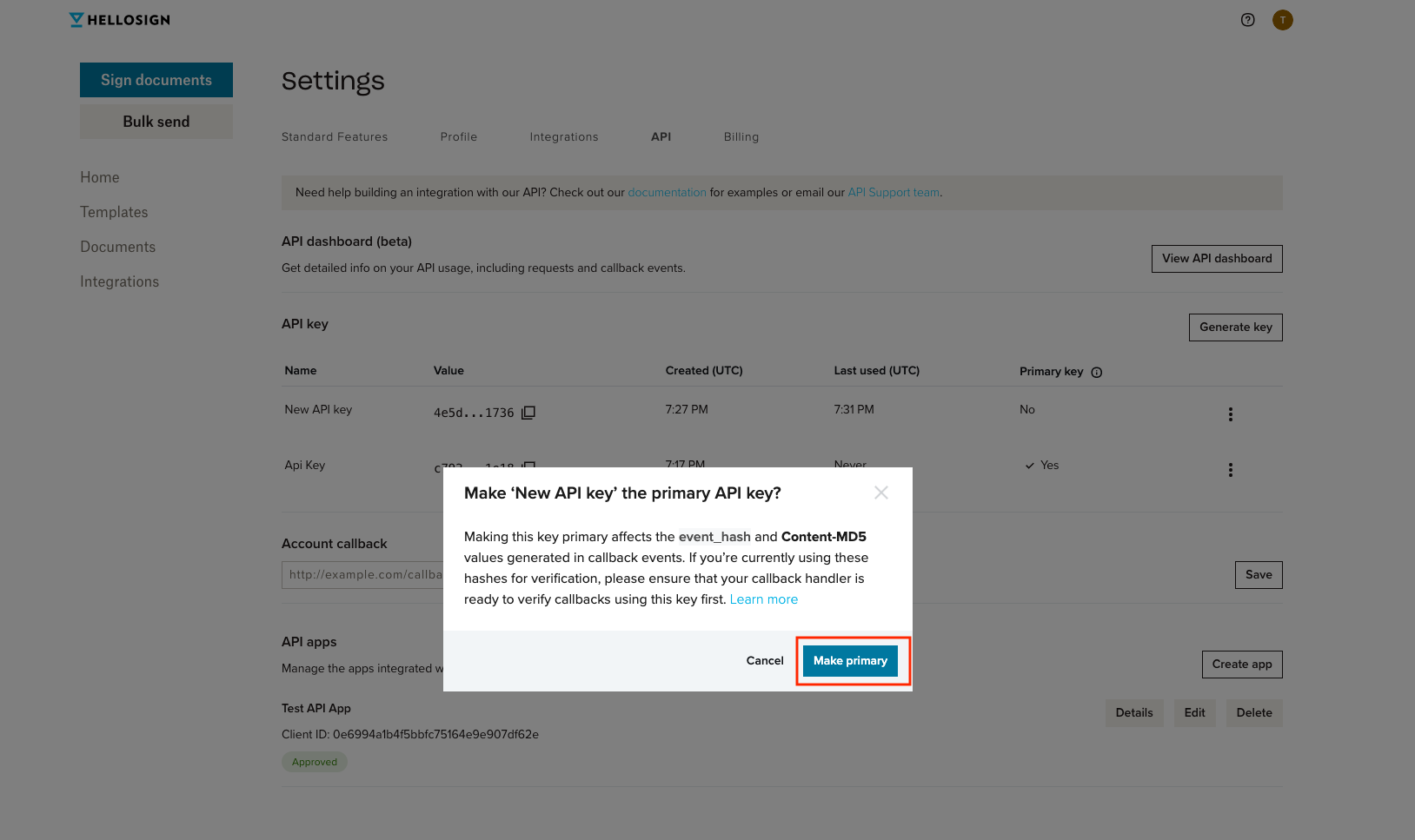
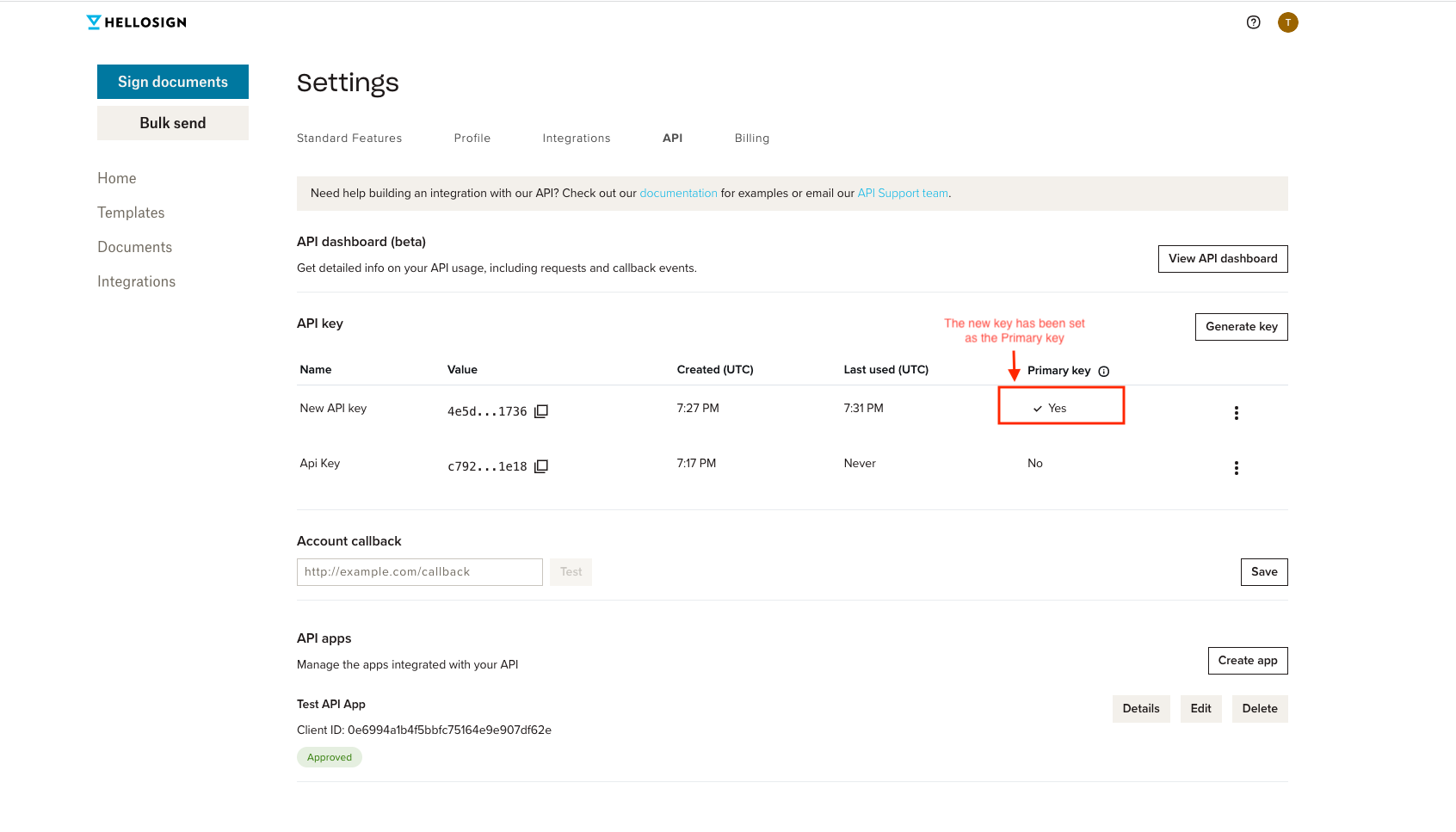
Each Dropbox Sign account (regardless of subscription tier) may have up to four API keys at a time. All keys are “active” and can be used to call the Dropbox Sign API, but only one key at a time can be set as the Primary Key. The Primary Key is used to generate the event_hash, which serves to verify event payloads.
Best Practices
We recommend the following best practices when using Dropbox Sign API keys:
Limitations
At the time of writing (Sept. 2022), the following limitations apply to Dropbox Sign API keys:
- API keys cannot be transferred between Dropbox Sign accounts.
- The maximum number of API keys per account is limited to 4.
- An API key cannot be set to expire.
- API key permissions cannot be restricted. Use OAuth if you need scoped access.
API Key Management
This section contains information to help users manage their API keys.
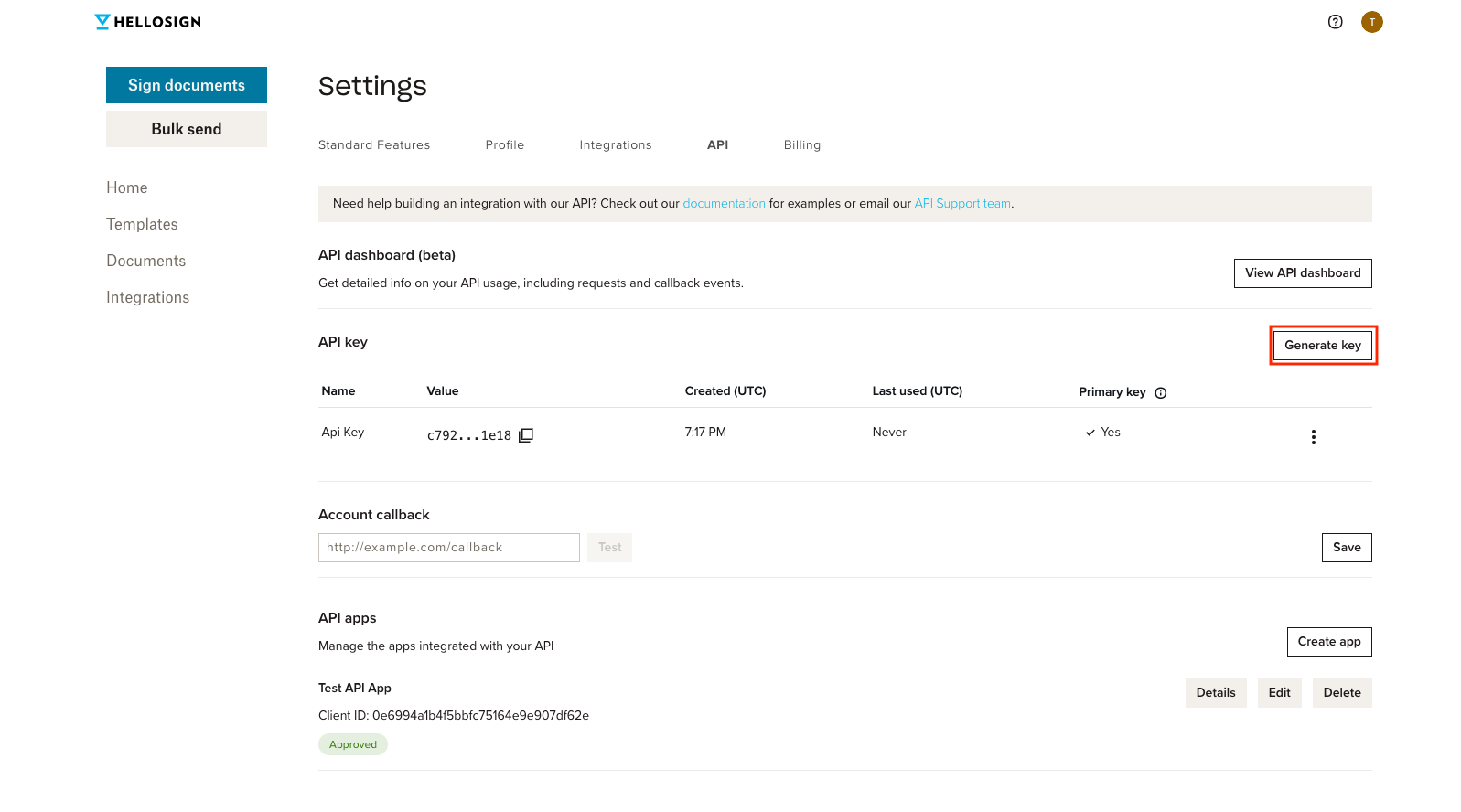
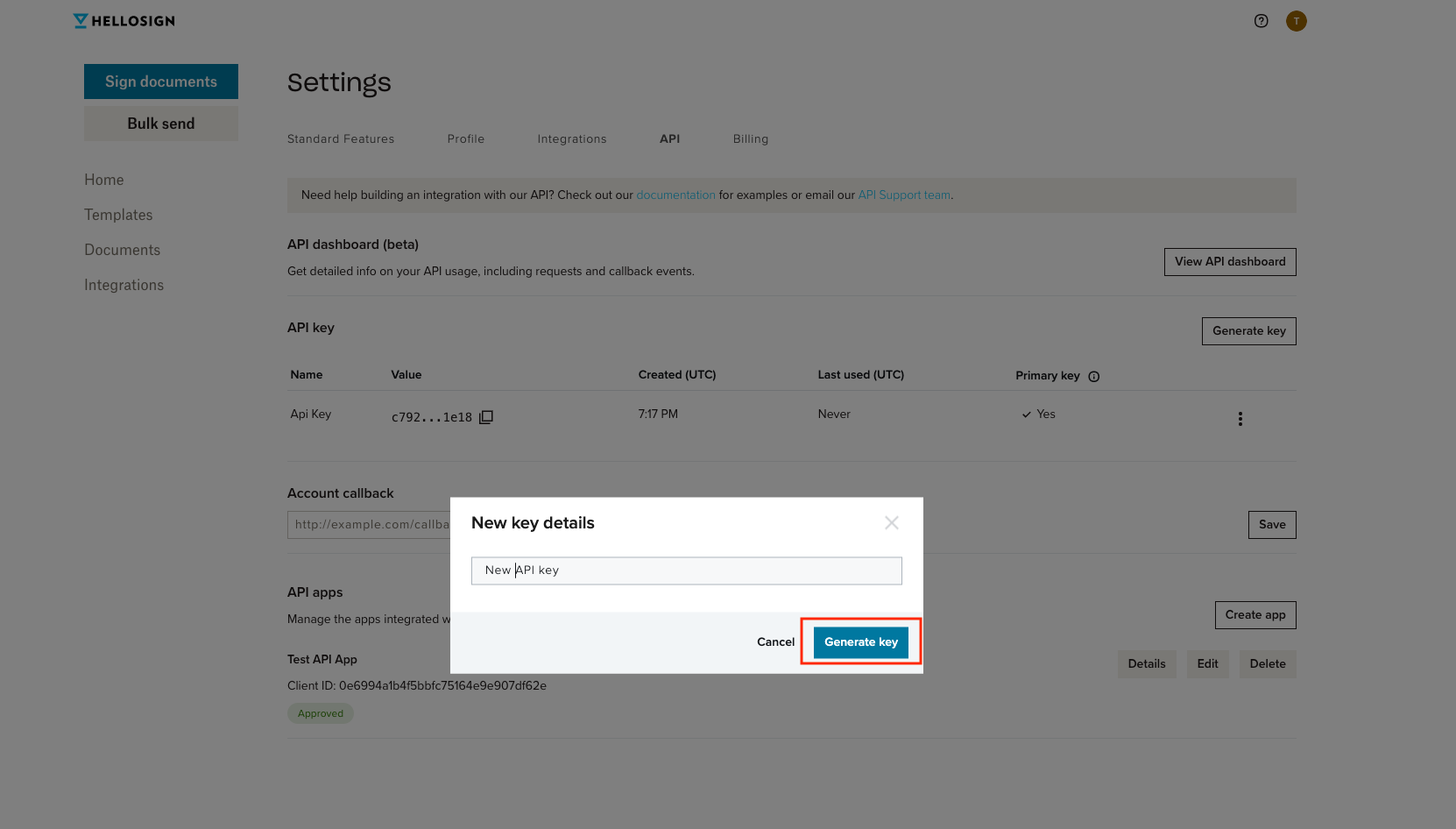
Generate New API Key
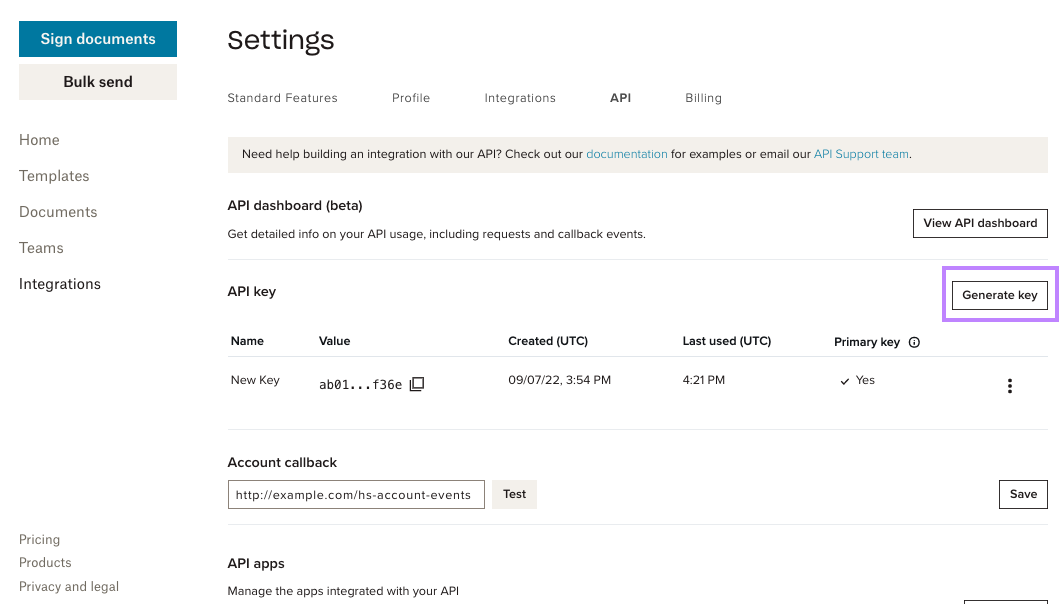
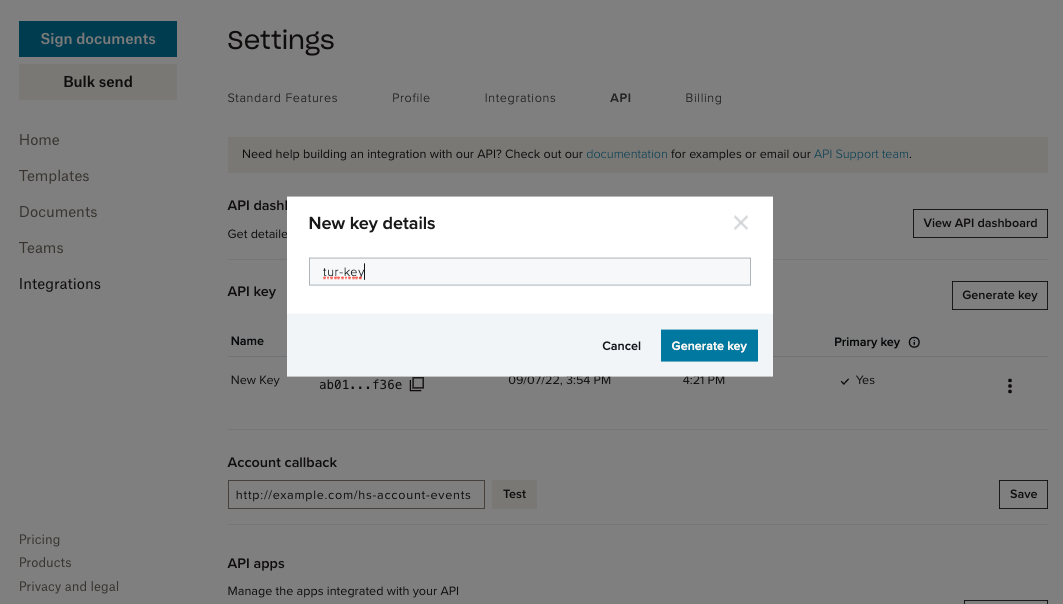
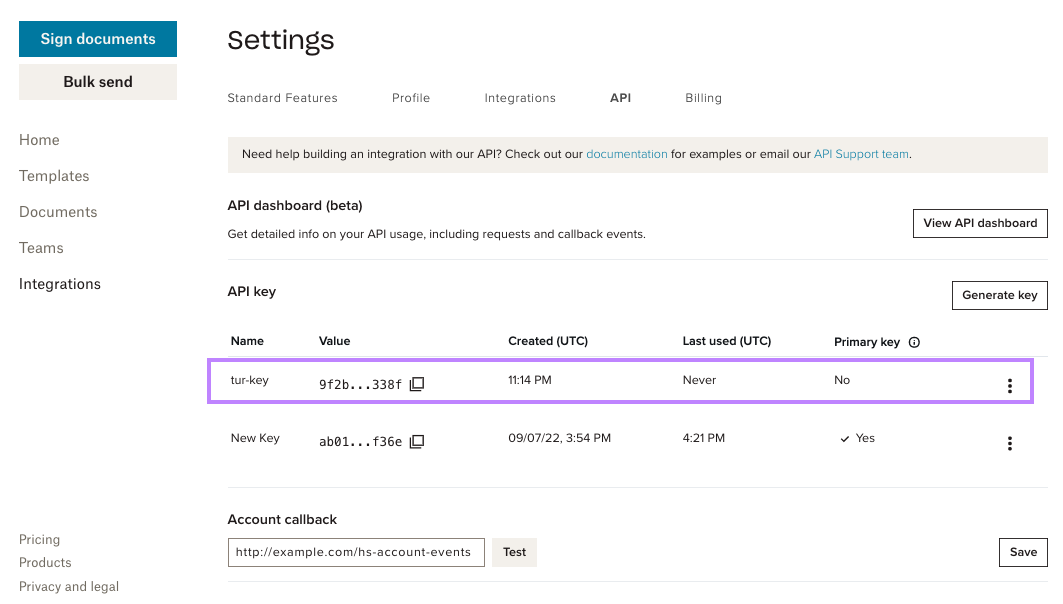
Delete API Key
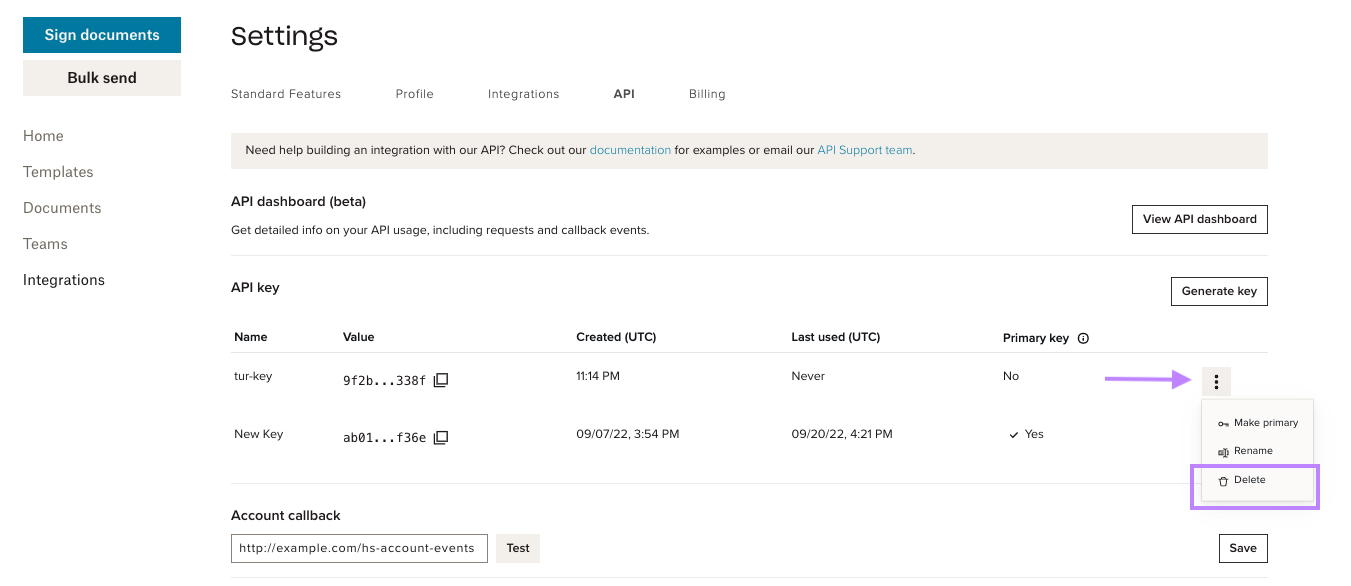
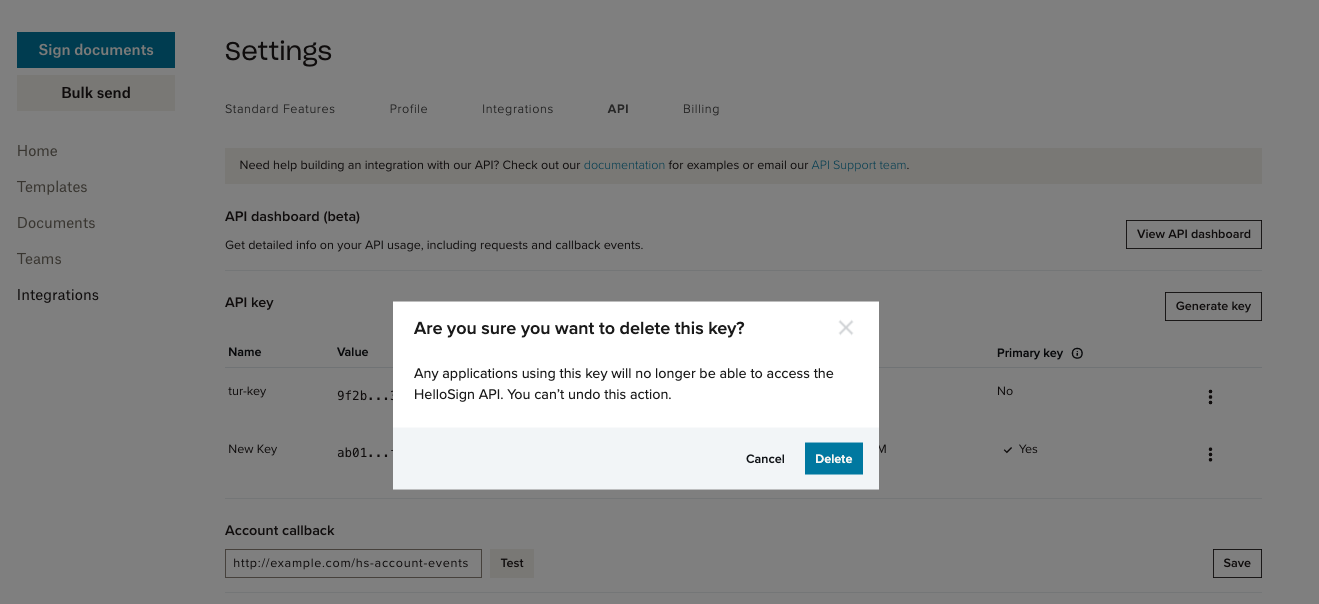
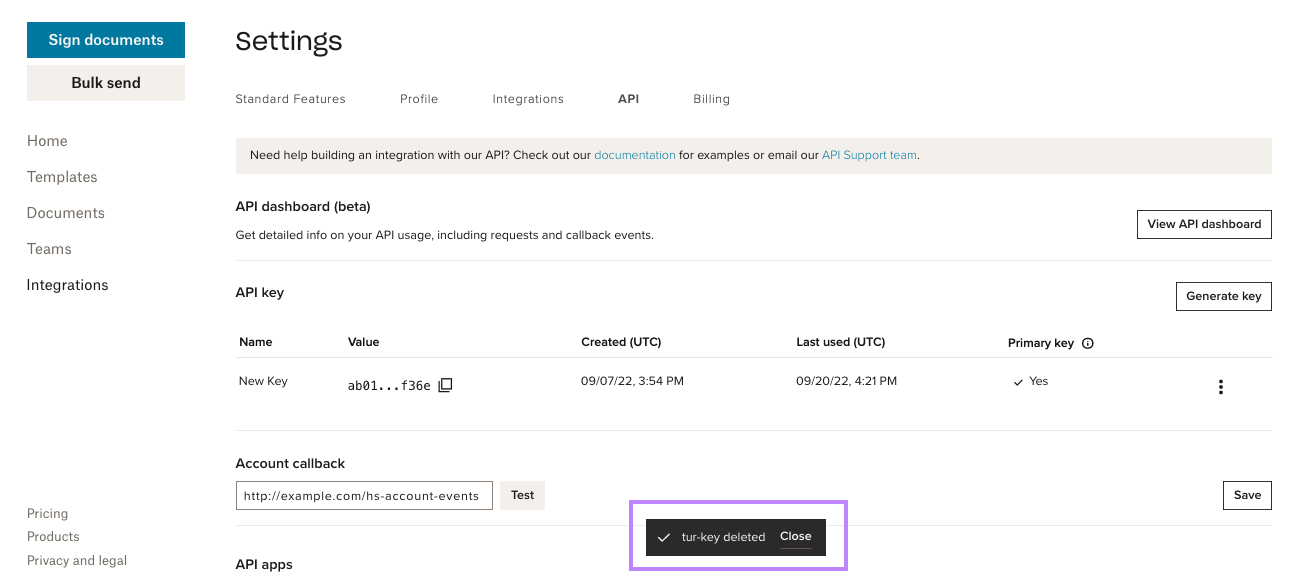
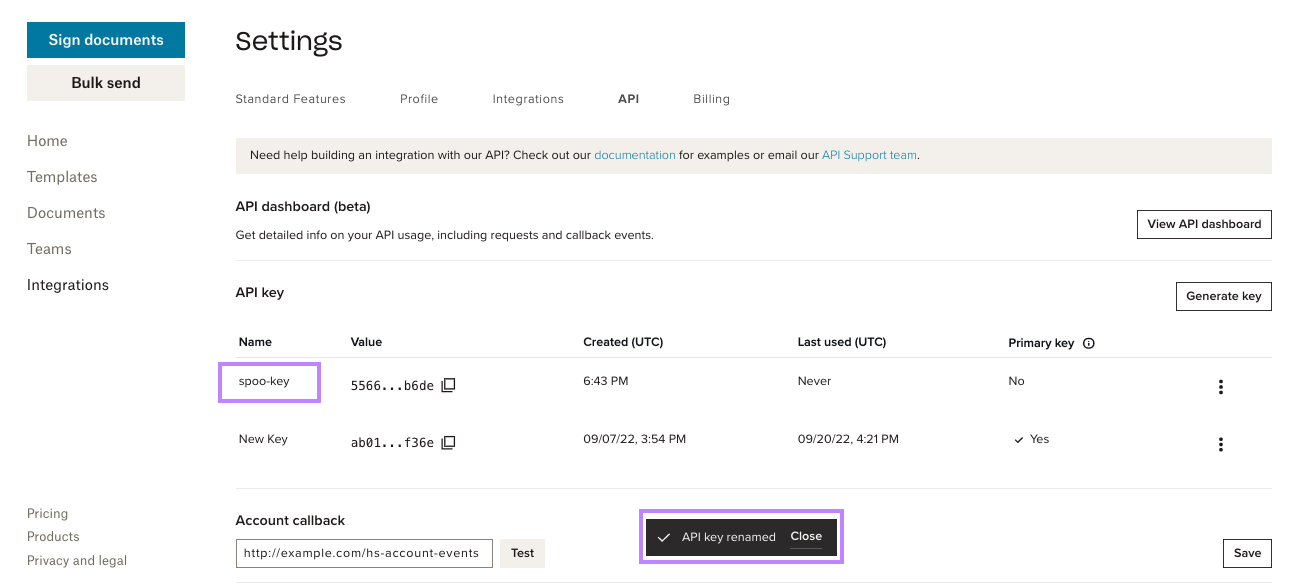
Rename API Key
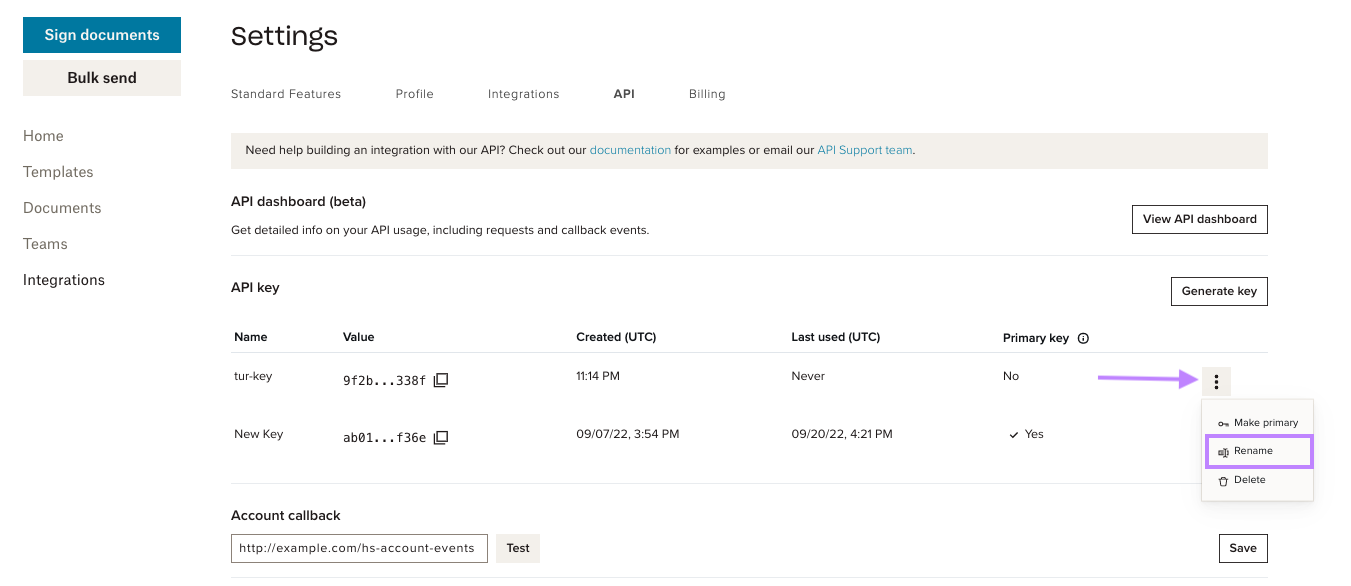
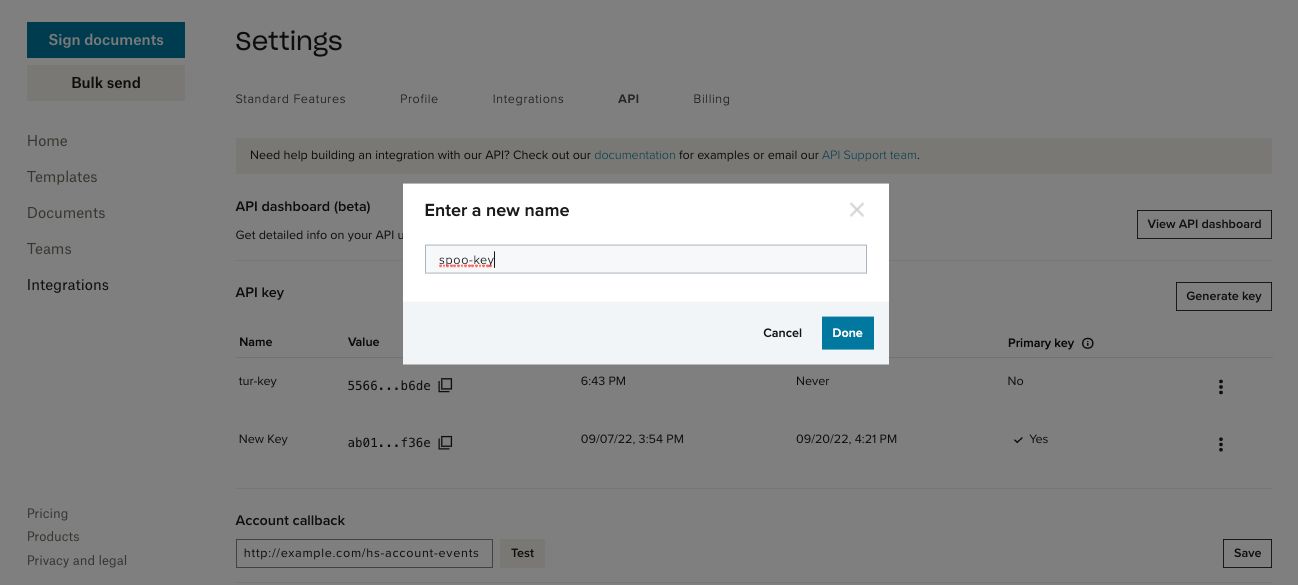
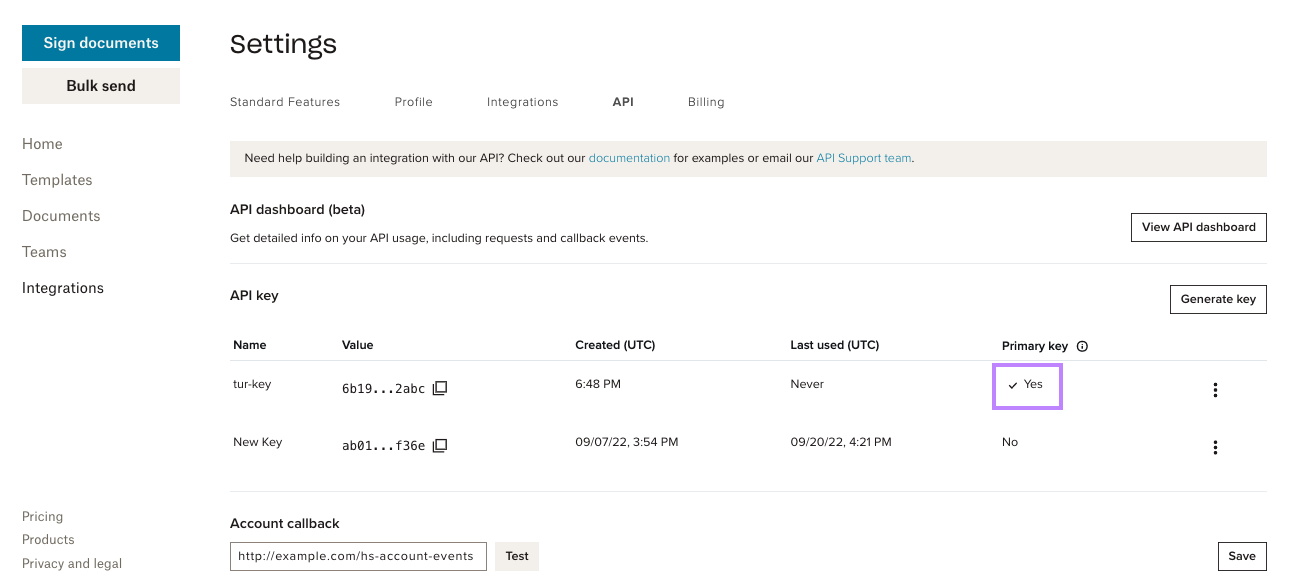
Choose Primary Key
Rotating API Keys
Frequently Asked Questions (FAQs)
Answers to commonly asked questions. When in doubt, please reach out to apisupport@hellosign.com
My API key was compromised, what should I do?
Do you suspect a breach?
- Yes — Create new key and delete the compromised credentials immediately. You can fix your integration right after with minimal down time.
- No — Rotate your API key as soon as possible.
When does my API key expire?
API keys are long-lived and do not expire. However, access tokens, which are used for OAuth, expire after an hour and can be regenerated using a refresh token.
How do I get an API key for testing?
Any valid API key can be used for testing the Dropbox Sign API by including the test_mode parameter in your request. Dropbox Sign doesn’t support different types of API keys, testing or otherwise.
How often should I rotate my API key?
We recommend rotating API keys at least once a year, but you can adjust the frequency to fit your security requirements.

