Using Templates with Pre-filled Data
Overview
Templates are an effective method for preserving document formatting and enabling their reuse in the future. If you add Embedded Templates to your web application, your users can even create their own templates. Adding pre-filled data to templates makes sending signature requests even easier.
Using Non-embedded Templates with Pre-filled Data
Non-embedded Templates are templates that are created on the Dropbox Sign Website. Using non-embedded Templates in the Dropbox Sign API production environment requires an Essential API or higher subscription plan.
You can add prefilled data to your template fields by adding Merge Fields in the document editor UI, then using the signature request’s custom_fields property.
How to Add Pre-filled Data with Non-embedded Templates
These instructions detail how to create a non-embedded Template on the Dropbox Sign Website, add your Signature and Merge Fields to your document, and send a signature request with pre-filled data.
Click here to view an example screenshot of the following workflow
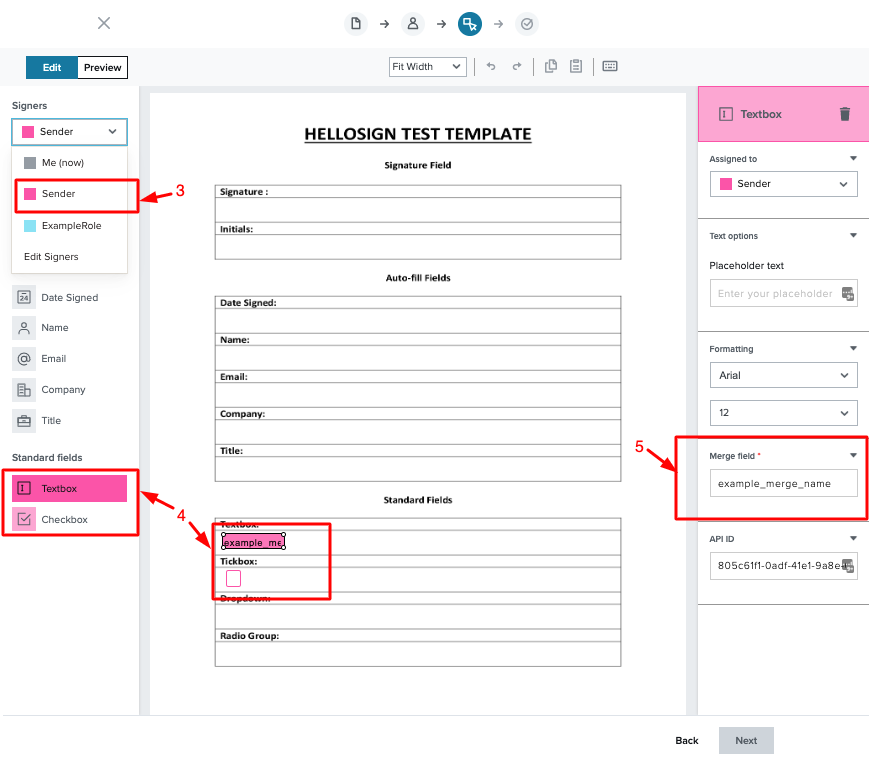
Create a new template or edit an existing template via the document editor.
Send with Template Endpoint with Pre-filled Data Example
Things to consider:
- The Merge Fields will need to be assigned to the Signer Role Sender. The Sender role is pre-built within the template and used for Merge fields.
- The Merge Field name on your template will need to match the
custom_fieldsvalue to pre-fill the data. - A
custom_fieldserror will occur if yourcustom_fieldsvalue doesn’t match your Merge Field name on your template.
Using Embedded Templates with Pre-filled Data
Embedded templates allow users to create and edit templates within an iFrame in your application. The Merge Fields that your user can add to their Embedded Template are specified by using the merge_field request property.
Note: Embedded Templates require a Premium API Plan to be used in Production.
Workflow of adding Pre-filled Data with embedded Templates
These instructions detail how to create an embedded template draft using the merge_field request property. The API response will include an edit_url, which is used as the iFrame source. Your user can then place their signature and merge fields on the embedded template.
Click here to view an example screenshot of the following workflow
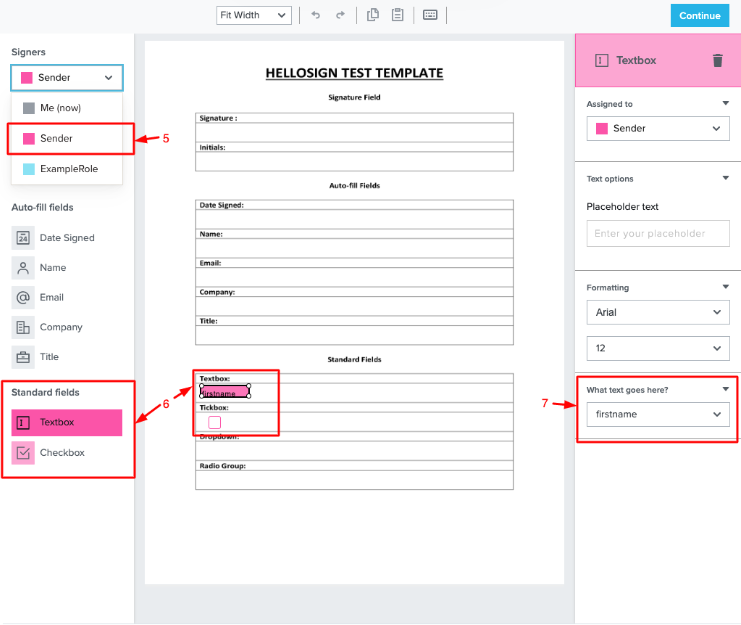
Send a request to /template/create_embedded_draft and add your merge fields using the merge_field property.
Open the edit_url in your application using the hellosign-embedded library. For this example workflow, you can use our Embedded Testing Tool to create the embedded template, which will open in a Dropbox Sign iFrame.
On the right sidebar, under “What text goes here?”, select the Merge Field name you would like to use on your template.
Once you’ve added all your Signature and Merge fields on your template, click Continue to complete the embedded template.
Create Embedded Template Draft Endpoint with Merge Fields Example
Send with Template Endpoint with Pre-filled Data Example
Things to consider:
- Embedded Templates will be in a draft state until they are completed in the embedded iFrame.
- Your user won’t be able to add new Merge Fields within the embedded Iframe. They must be set up previously, in the embedded template request.
- If you need to edit or add a Merge Field to an existing Embedded Template you will need to execute the Get Embedded Template Edit URL Endpoint with the
merge_fieldparameter specifying the new Merge Fields for the template.- Merge fields already placed by the user remain on the template while the user must place the newly added ones.

