# SMS Tools
> Find out how to use SMS Tools for both authentication and delivery of signature requests.
# SMS Tools Walkthrough
There are a couple of options that we provide through our SMS Tools add-on that can help improve your workflow by enabling SMS features. Take a look at the different features we offer to see if this add-on can increase the capability for your workflow.
## SMS Tools Add-on
The SMS Tools add-on is an additional charge that provides two SMS-based features that can be included in your workflow: SMS authentication and SMS delivery. This add-on can be used with a Standard API plan or higher. For more details on our API plans, please see our [plans and pricing page](https://www.hellosign.com/info/api-pricing "Sign API Plans"). For any questions regarding the SMS Tools add-on option or billing, please contact our Sales team with this [form](https://www.hellosign.com/form/api-pricing "Contact Sign Sales Team").
### SMS Authentication
The SMS authentication feature provides the option to include a unique SMS authentication code that is sent to the signer once the signature request is submitted. In order for the signer to open and complete their portion of the document, they'll need to provide the unique code sent via SMS. This adds an additional layer of security when having your signers complete their signature requests.
### SMS Delivery
The SMS delivery feature provides a link to sign the signature request via both email and SMS. Once the signature request is sent to the signers, each signer will receive both an email notification and an SMS message with a link to complete their portion of the document.
## Requirements
Note: E.164 is a general phone number format that has a maximum of 15 digits. The format includes the + \[country code]\[subscriber area code + subscriber number]. Here's an example of a US phone number in E.164 format: +12345678901
| SMS Authentication | SMS Delivery |
| --------------------------------------------------------------------------------------------------------------------------------------------------------------------------------------------------------------------------------------------------------------------------------------------------------------------------------------------------------------------------- | --------------------------------------------------------------------------------------------------------------------------------------------------------------------------------------------------------------------------------------------------------------------------------------------------------------------------------------------------- |
| - SMS tools add-on included on your API plan
- Update "Signer authentication" setting in the Admin Console
- Use two additional parameters in the `signers` array of your request:1. `sms_phone_number` with an E.164 formatted phone number
2. `sms_phone_number_type = "authentication"` (defaults to "authentication")
| - SMS tools add-on included on your API plan
- Update "Signature request delivery methods" setting in the Admin Console
- Use two additional parameters in the `signers` array of your request:1. `sms_phone_number` with an E.164 formatted phone number
2. `sms_phone_number_type = "delivery"`
|
## Updating Admin Console Settings
| Admin Console | Images |
| ----------------------------------------------------------------------------------------------------------------------------------------------------------------------------------------------------------------------------------------------------------------------------------------------------------------------------------------------------------------------------------------------------------------------------------------------------------------- | ----------------------------------------------------------------------------------------------------------- |
| Access Admin Console:
1. Log in to your [Dropbox Sign](https://app.hellosign.com/account/logIn "Dropbox Sign Account Login") account.
2. Select the initials in the top right corner of the home page and click on "**Admin Console**".
3. Select the "**Settings**" in the left panel on the Admin Console and then click on "**Signature Requests**".
4. Scroll to "**Signature Request options**". | 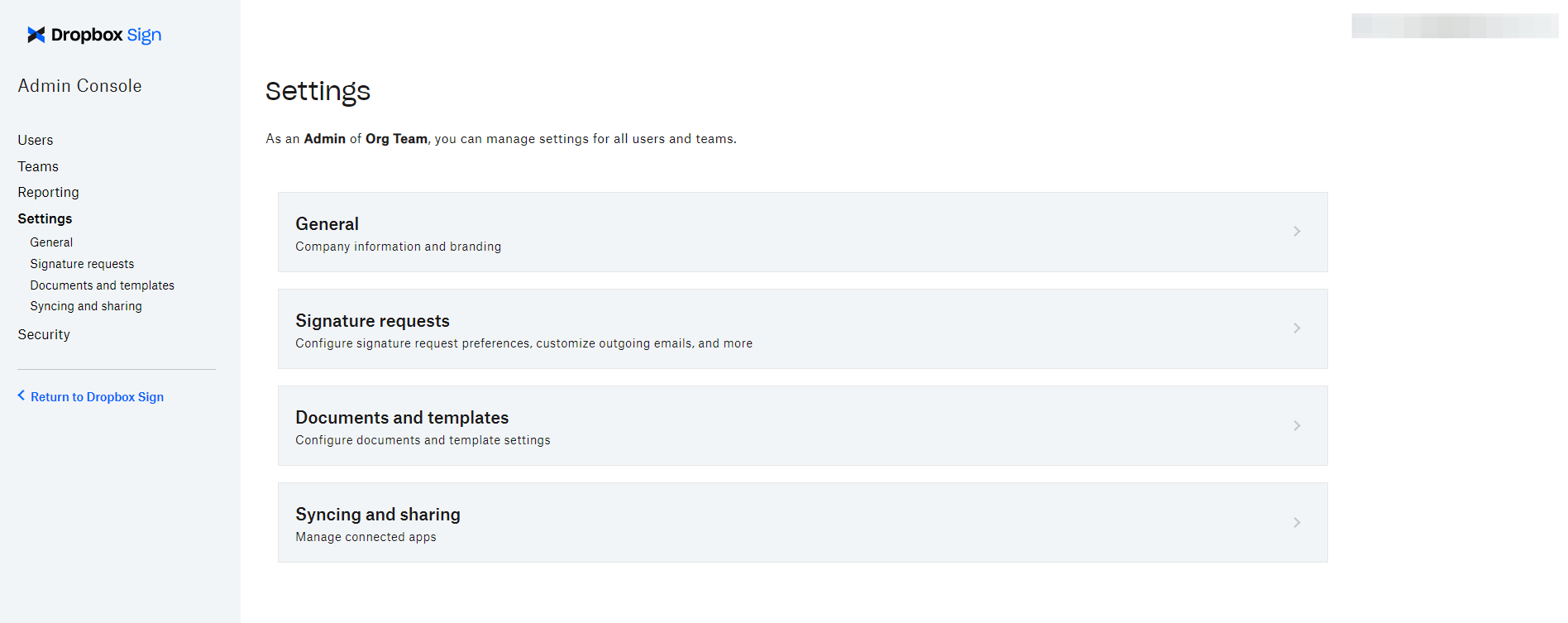 |
| Steps to update signer authentication:
1. For the "**Signer authentication**" option, click the toggle switch to the right to enable it.
2. Select one or both of the following:- **Access code**: enter the code you'd like to give to the signer for document access.
- **Text message**: enter the signer's mobile number.3. Click "**Save settings**" in the bottom right corner. | 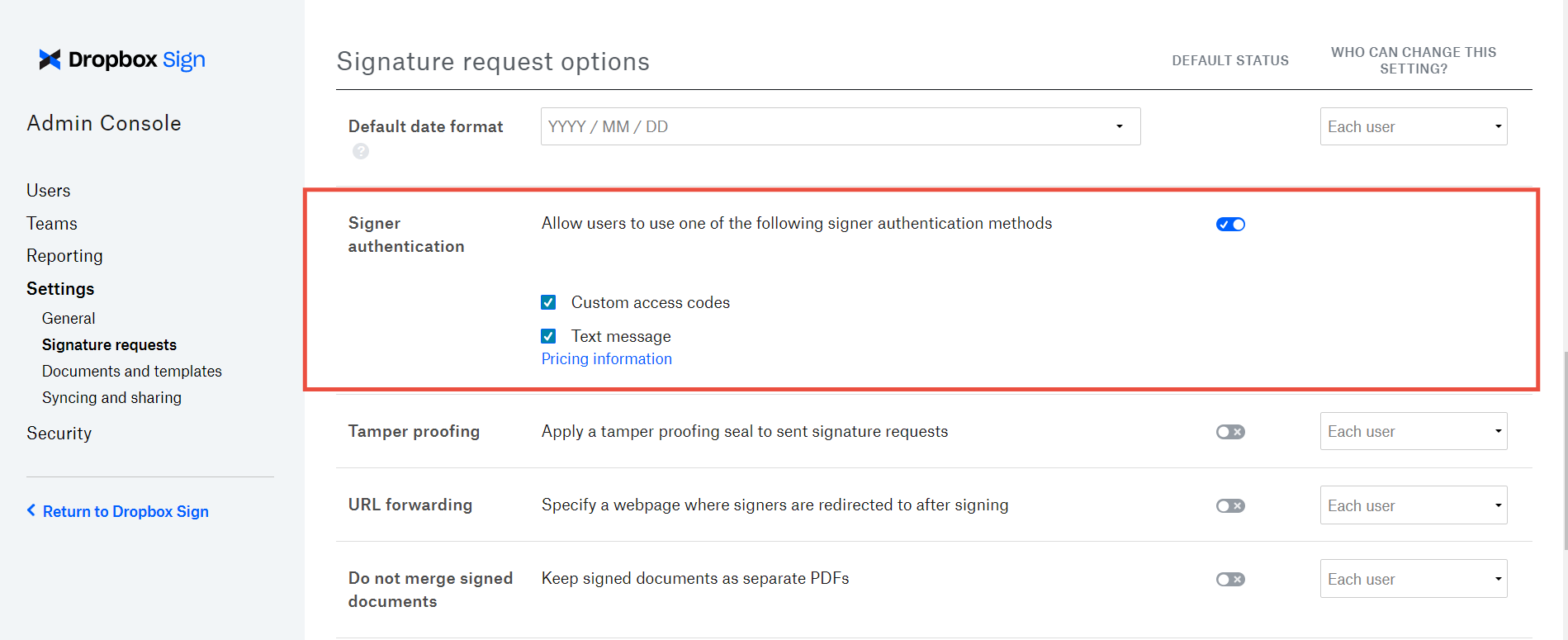 |
| Steps to update signature request delivery methods:
1. For the "**Signature request delivery methods**" option, click the toggle switch to the right to enable it. Signature requests can now be sent by both email and text message.
2. Click "**Save settings**" in the bottom right corner. | 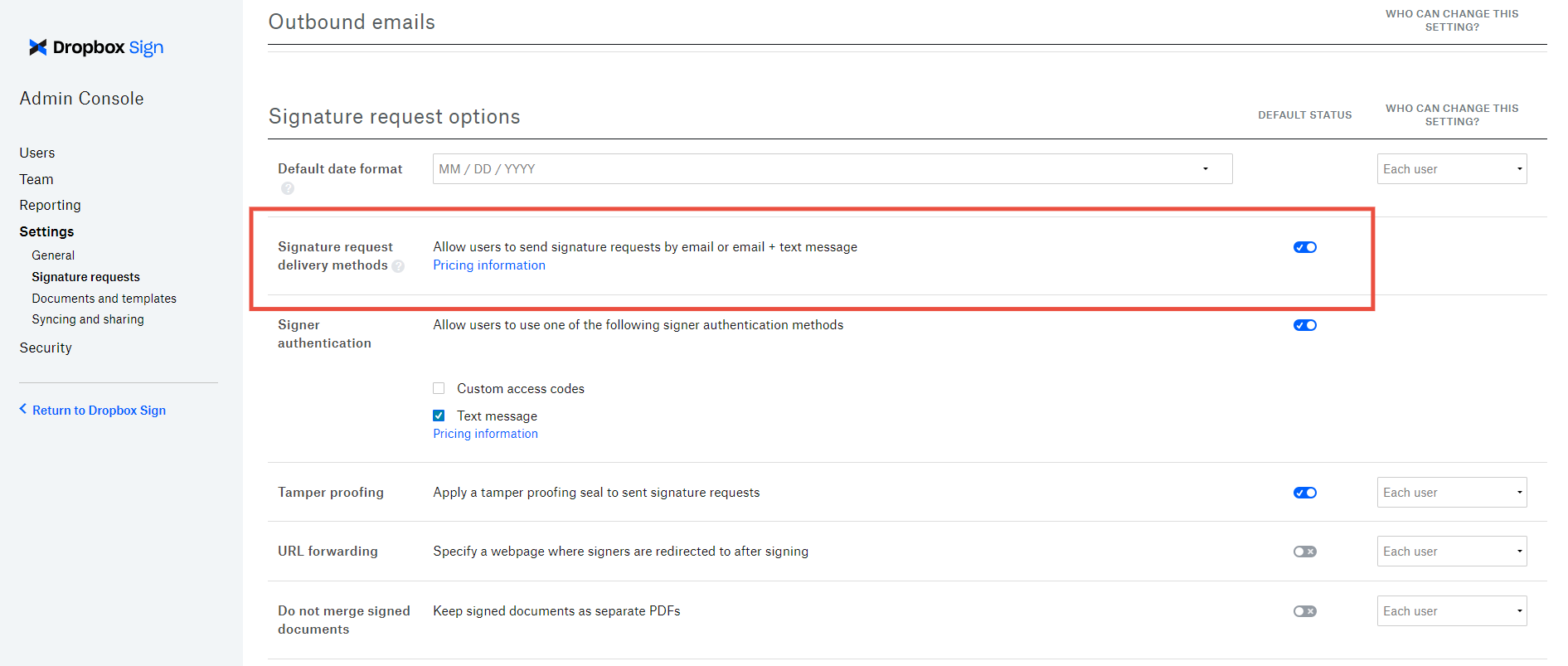 |
## Using SMS Authentication and SMS Delivery
- SMS authentication and SMS delivery cannot be tested in
test_mode.
- Message and data rates for SMS messaging may apply.
- SMS Features may not be available in all countries. If receiving an error, please send a request to our support team using this form.
### Both features available for the following API endpoints:
* [Send Signature Request](/api/signature-request/send)
* [Send with Template](/api/signature-request/send-with-template)
* [Bulk Send with Template](/api/signature-request/bulk-send-with-template)
* [Create Embedded Signature Request](/api/signature-request/create-embedded)
* [Create Embedded Signature Request with Template](/api/signature-request/create-embedded-with-template)
* [Embedded Bulk Send with Template](/api/signature-request/bulk-create-embedded-with-template)
### Process
| Steps | Images |
| --------------------------------------------------------------------------------------------------------------------------------------------------------------------------------------------------------------------------------------------------------------------------------------------------------------------- | ---------------------------------------------------------------------------------------------------------------------------------------------------------------------------------------------------------------------------------------------------------- |
| 1. For SMS authentication, once you send your request your signers will receive an email with a link to sign the document. | |
| 2. The signer will then open that link and they will be prompted to verify their identity. | 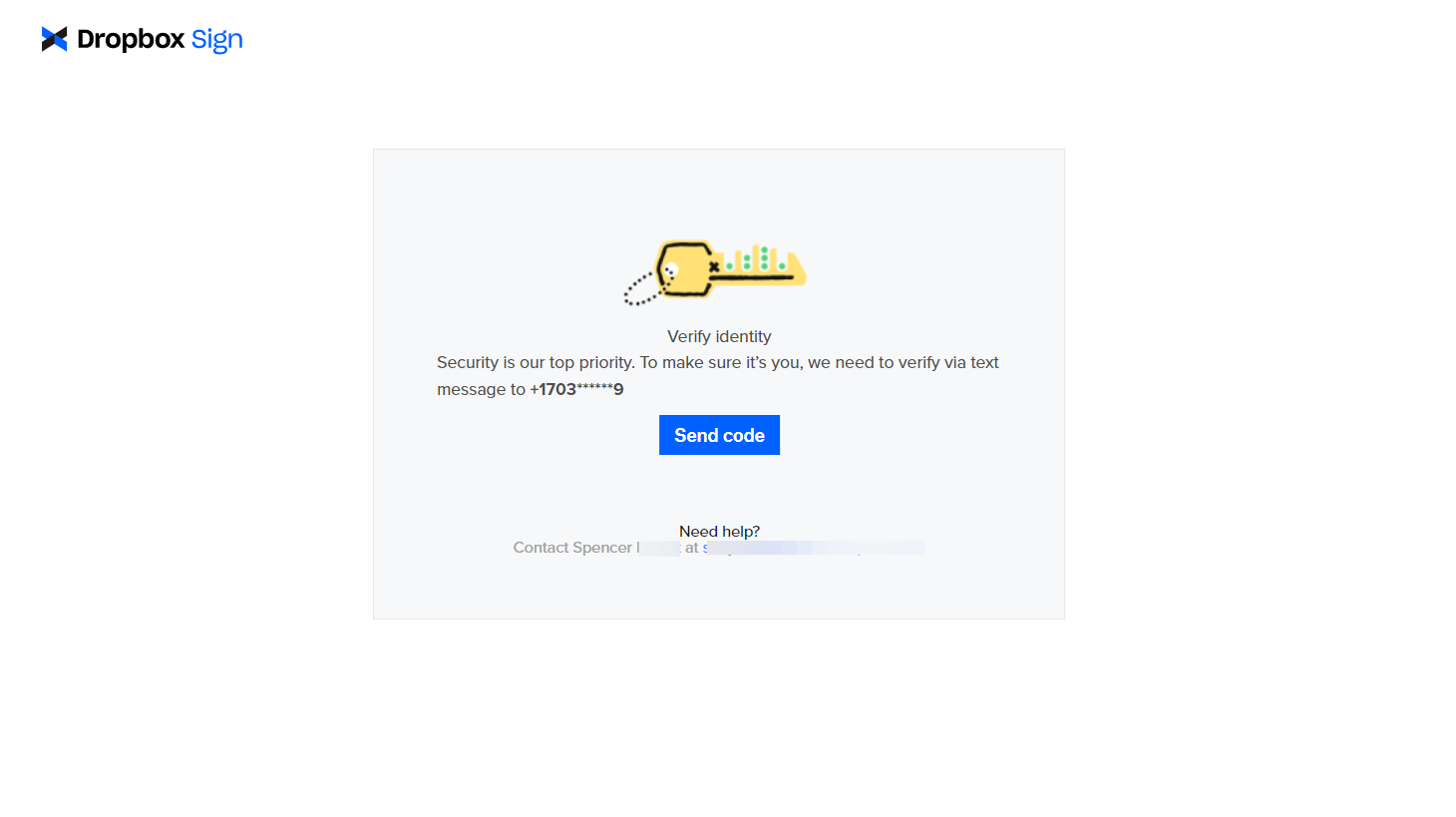 |
| 3. At this point, they can select the "Send code" button to receive a 6-digit code via text message to the phone number associated with that signer (redacted in the prompt). They can then enter the code and continue with the signing process. Additionally, they can request the code to be sent again if needed. |
|
| 3. At this point, they can select the "Send code" button to receive a 6-digit code via text message to the phone number associated with that signer (redacted in the prompt). They can then enter the code and continue with the signing process. Additionally, they can request the code to be sent again if needed. | 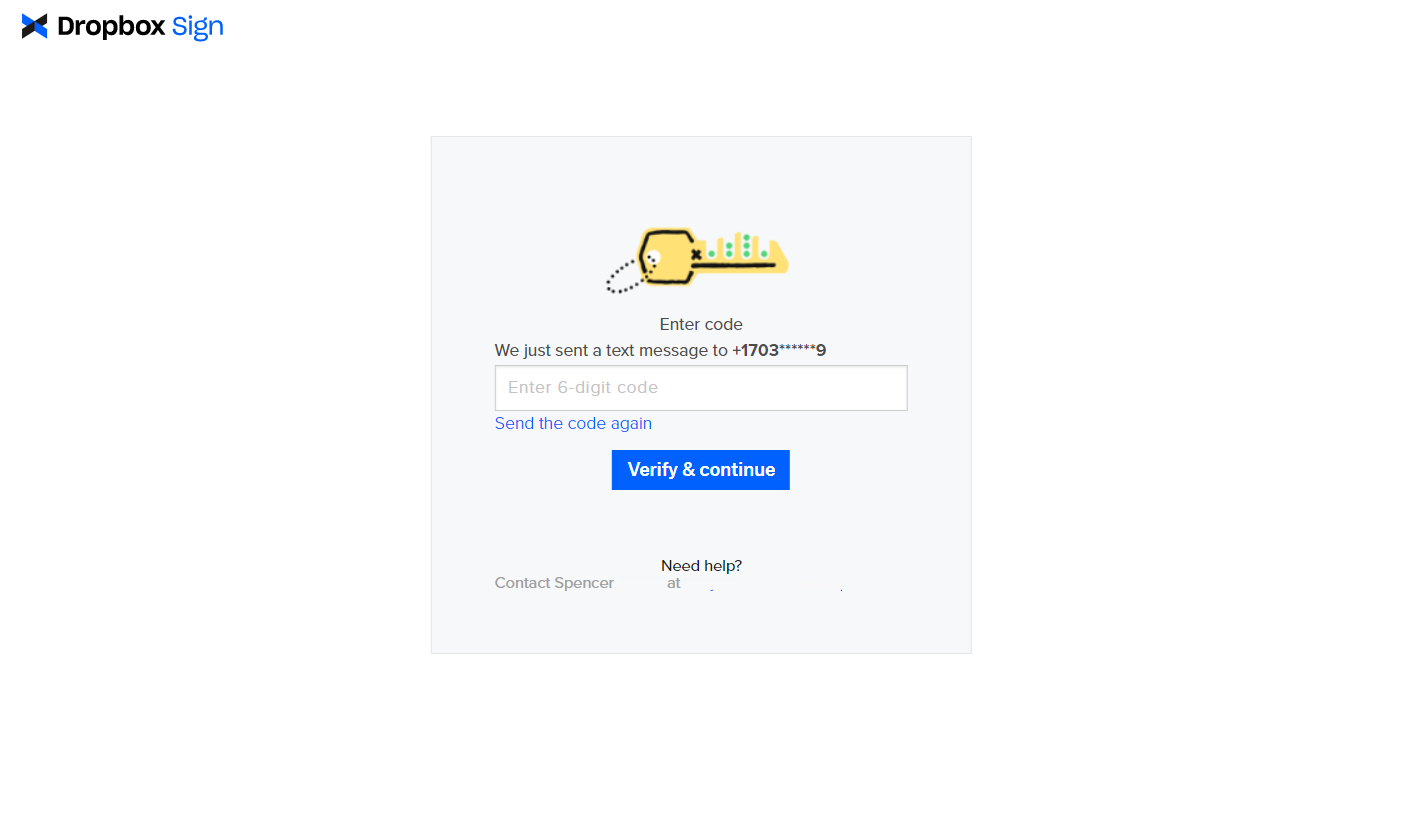 |
| 4. Once the correct code has been entered, the document will appear ready for the signer to complete their portion of the document. | |
|
| 4. Once the correct code has been entered, the document will appear ready for the signer to complete their portion of the document. | |
| Steps | Images |
| --------------------------------------------------------------------------------------------------------------------------------------------------------------------------------------------------------------------- | -------------------------------------------------------------------------------------------------------------------------------------------------------------------------------------------------------------------------------------------------------- |
| 1. For SMS delivery, when the request is sent, both an email and a text message with a link to sign the document will be sent to the signers. | 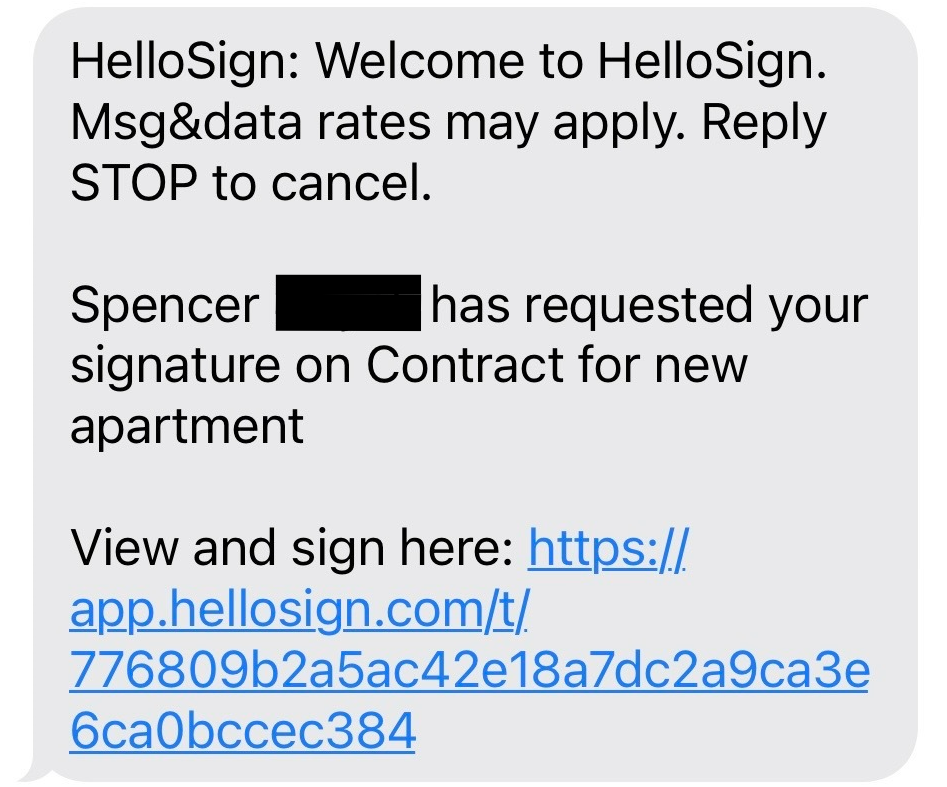 |
| 2. They can then complete their portion of the document by clicking on either link. Once signed, they will receive a text message stating they have completed it and to check their email for the completed document. |
|
| 2. They can then complete their portion of the document by clicking on either link. Once signed, they will receive a text message stating they have completed it and to check their email for the completed document. | 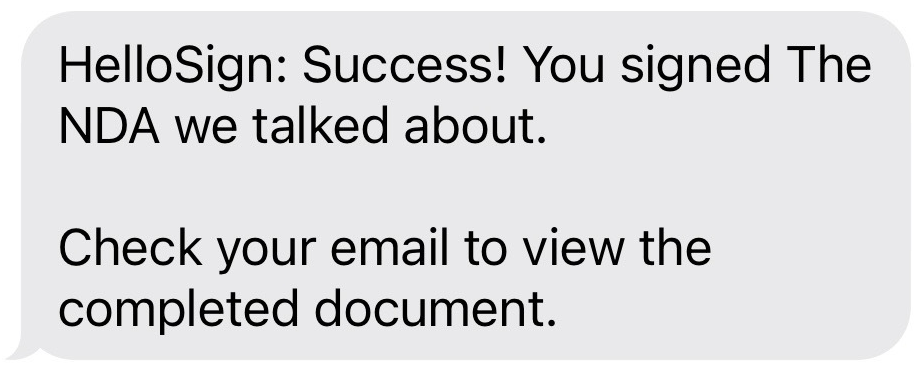 |
| 3. Additionally, if enabled on your account, they will see the 3 and 7 day signature request reminders via text message as well. |
|
| 3. Additionally, if enabled on your account, they will see the 3 and 7 day signature request reminders via text message as well. | 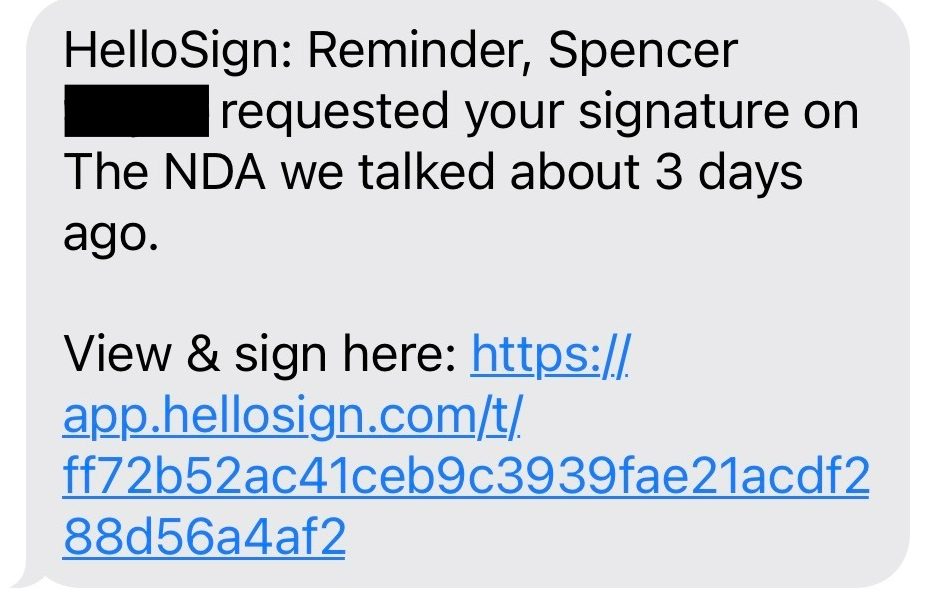 |
### Examples:
Note: These features can both be used with the above endpoints using our new SDKs. Please see our overview page to get started with our official SDKs.
#### SMS Authentication
```JSON Send with Template - JSON
{
"title": "NDA with Acme Co.",
"subject": "The NDA we talked about",
"message": "Please sign this NDA and then we can discuss more. Let me know if you have any questions.",
"signers": [
{
"role": "Client",
"email_address": "jack@example.com",
"name": "Jack",
"order": 0,
// Add E.164 formatted phone number
"sms_phone_number": "12345678901",
// Add the phone number type as authentication
"sms_phone_number_type": "authentication"
}
],
"file_urls": [
"https://www.dropbox.com/s/ad9qnhbrjjn64tu/mutual-NDA-example.pdf?dl=1"
],
"signing_options": {
"draw": true,
"type": true,
"upload": true,
"phone": true,
"default_type": "draw"
},
// Test mode must be false
"test_mode": false
}
```
|
### Examples:
Note: These features can both be used with the above endpoints using our new SDKs. Please see our overview page to get started with our official SDKs.
#### SMS Authentication
```JSON Send with Template - JSON
{
"title": "NDA with Acme Co.",
"subject": "The NDA we talked about",
"message": "Please sign this NDA and then we can discuss more. Let me know if you have any questions.",
"signers": [
{
"role": "Client",
"email_address": "jack@example.com",
"name": "Jack",
"order": 0,
// Add E.164 formatted phone number
"sms_phone_number": "12345678901",
// Add the phone number type as authentication
"sms_phone_number_type": "authentication"
}
],
"file_urls": [
"https://www.dropbox.com/s/ad9qnhbrjjn64tu/mutual-NDA-example.pdf?dl=1"
],
"signing_options": {
"draw": true,
"type": true,
"upload": true,
"phone": true,
"default_type": "draw"
},
// Test mode must be false
"test_mode": false
}
```
#### SMS Delivery
```cURL Send with Template - cURL
curl -X POST 'https://api.hellosign.com/v3/signature_request/send_with_template' \
-u 'YOUR_API_KEY:' \
-F 'client_id=YOUR_CLIENT_ID' \
-F 'template_ids[]=61a832ff0d8423f91d503e76bfbcc750f7417c78' \
-F 'title=NDA with Acme Co.'
-F 'subject=The NDA we talked about' \
-F 'message=Please sign this NDA and then we can discuss more. Let me know if you\nhave any questions.' \
-F 'signers[0][role]=Client' \
-F 'signers[0][name]=Jack' \
-F 'signers[0][email_address]=jack@example.com' \
-F 'signers[0][sms_phone_number]=12345678901' \
-F 'signers[0][sms_phone_number_type]=delivery' \
-F 'signing_options[draw]=1' \
-F 'signing_options[type]=1' \
-F 'signing_options[upload]=1' \
-F 'signing_options[phone]=1' \
-F 'signing_options[default_type]=draw' \
-F 'test_mode=0'
```
```JSON Send with Template - JSON
{
"title": "NDA with Acme Co.",
"subject": "The NDA we talked about",
"message": "Please sign this NDA and then we can discuss more. Let me know if you\nhave any questions.",
"signers": [
{
"email_address": "jack@example.com",
"name": "Jack",
"order": 0,
// Add E.164 formatted phone number
"sms_phone_number": "12345678901",
// Add the phone number type as delivery
"sms_phone_number_type": "delivery"
}
],
"file_urls": [
"https://www.dropbox.com/s/ad9qnhbrjjn64tu/mutual-NDA-example.pdf?dl=1"
],
"signing_options": {
"draw": true,
"type": true,
"upload": true,
"phone": true,
"default_type": "draw"
},
// Test mode must be false
"test_mode": false
}
```