# Implementation
> Steps to sign with NOM 151 signature type.
# Signing with NOM 151
The NOM 151 feature can be used through both the Dropbox Sign website and with several API endpoints. Once you have enabled the feature (please see our Setup section for more information), the option will be available in the Dropbox Sign Website workflow and the parameter will be active for API users. Please see the steps below on how to sign with NOM 151 enabled.
## Dropbox Sign Website
| Steps | Images |
| ---------------------------------------------------------------------------------------------------------------------------------------------------------------------------------------------------------------------------------------------------- | -------------------------------------------------------------------------------------------------- |
| 1. Sign in to [Dropbox Sign](https://app.hellosign.com/account/logIn). | 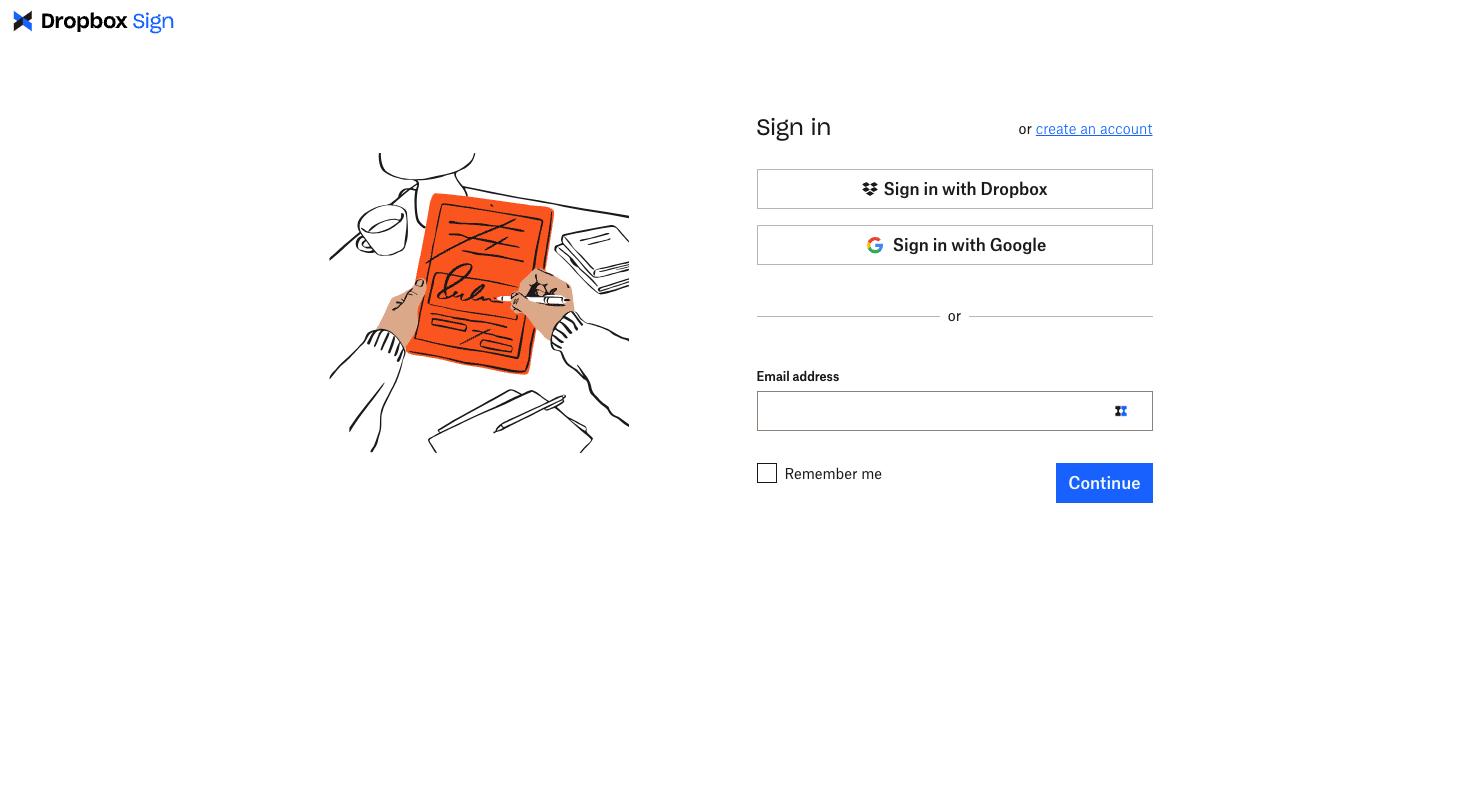 |
| 2. Select "Sign Documents" and upload your file to be signed. |
|
| 2. Select "Sign Documents" and upload your file to be signed. | 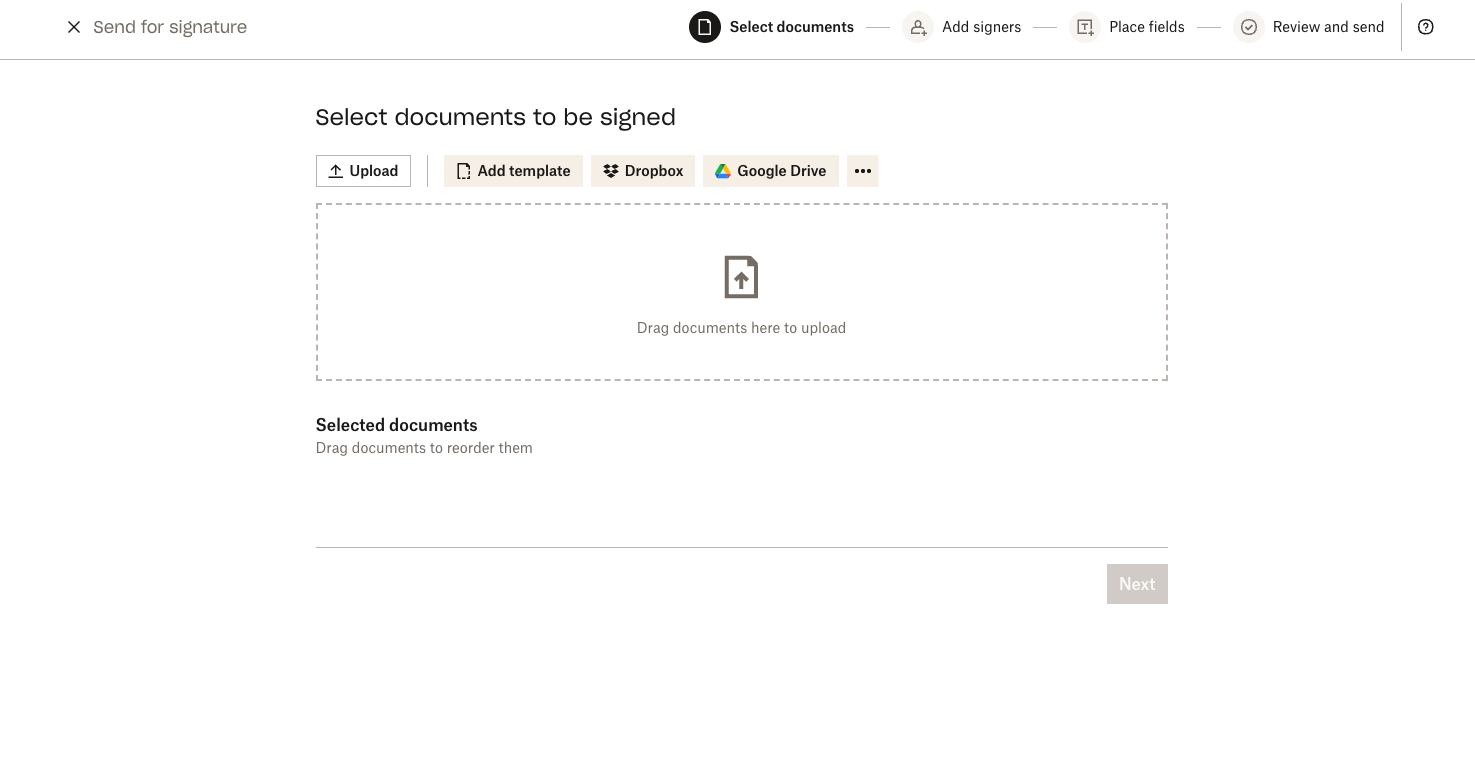 |
| 3. Add your signer information and select the NOM 151 checkbox under "Signature type". |
|
| 3. Add your signer information and select the NOM 151 checkbox under "Signature type". | 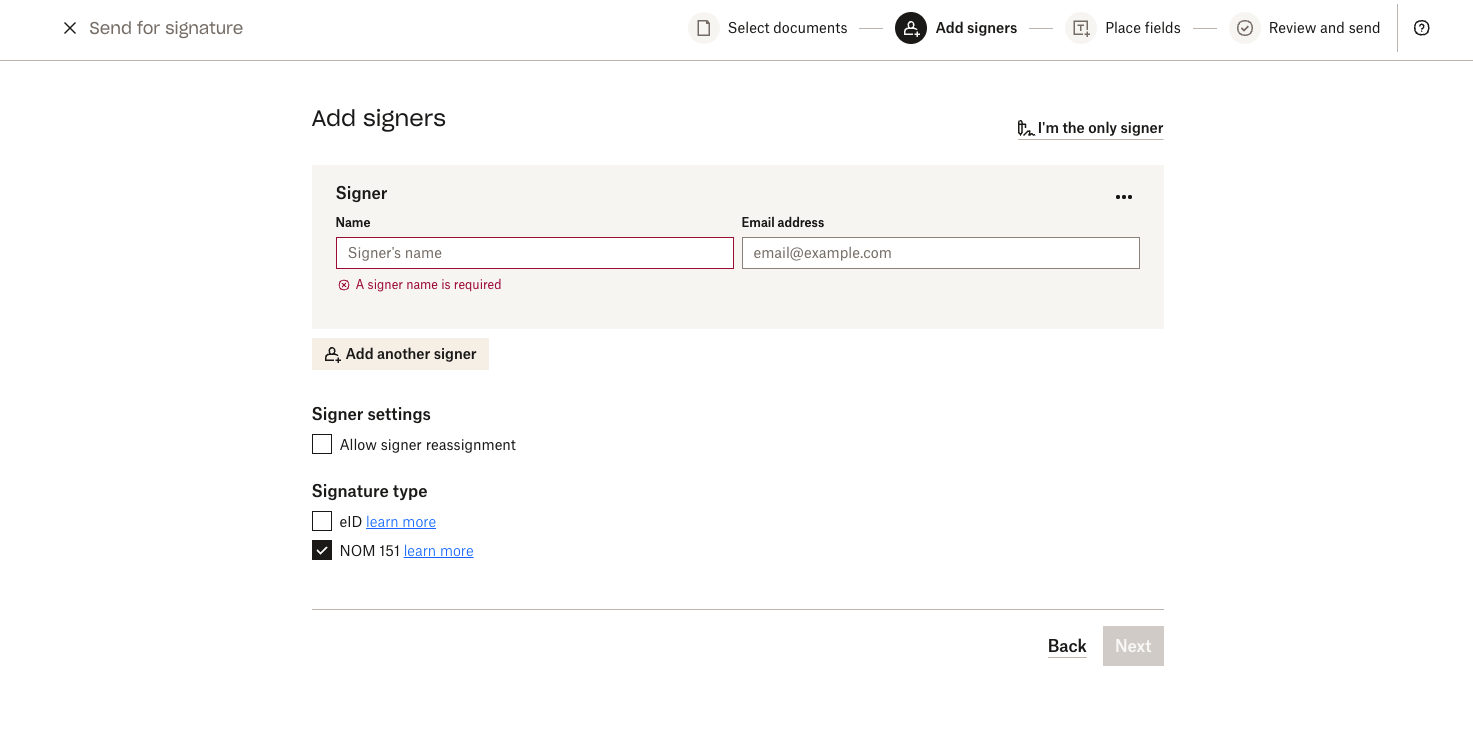 |
| 4. Add your signer fields to the document. Select "Next" once complete. |
|
| 4. Add your signer fields to the document. Select "Next" once complete. | 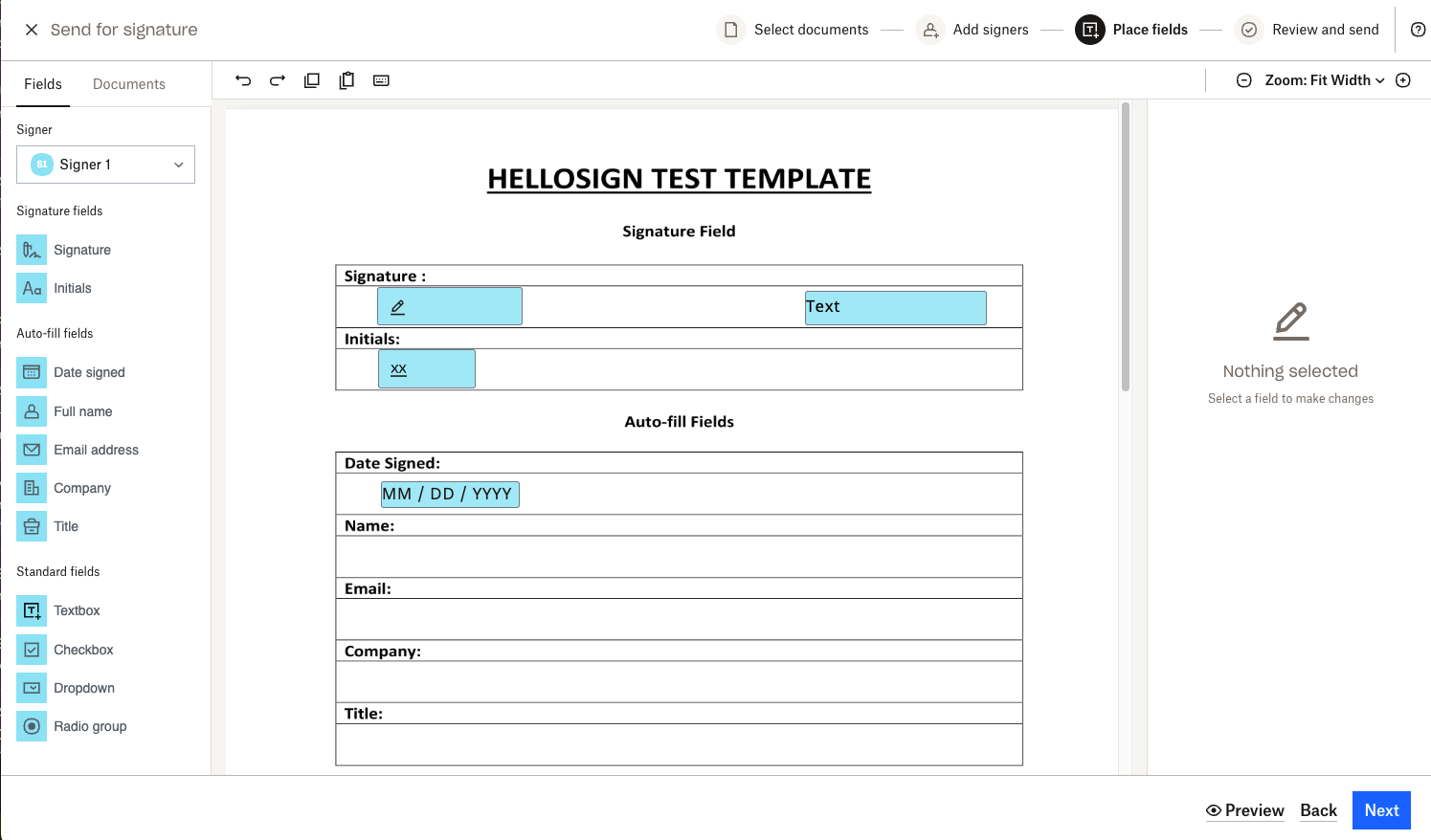 |
| 5. Add a Title to your signature request. Additionally, add the optional CC recipients, Documentation expiration, and / or Message. Select "Send for signature" once complete. |
|
| 5. Add a Title to your signature request. Additionally, add the optional CC recipients, Documentation expiration, and / or Message. Select "Send for signature" once complete. | 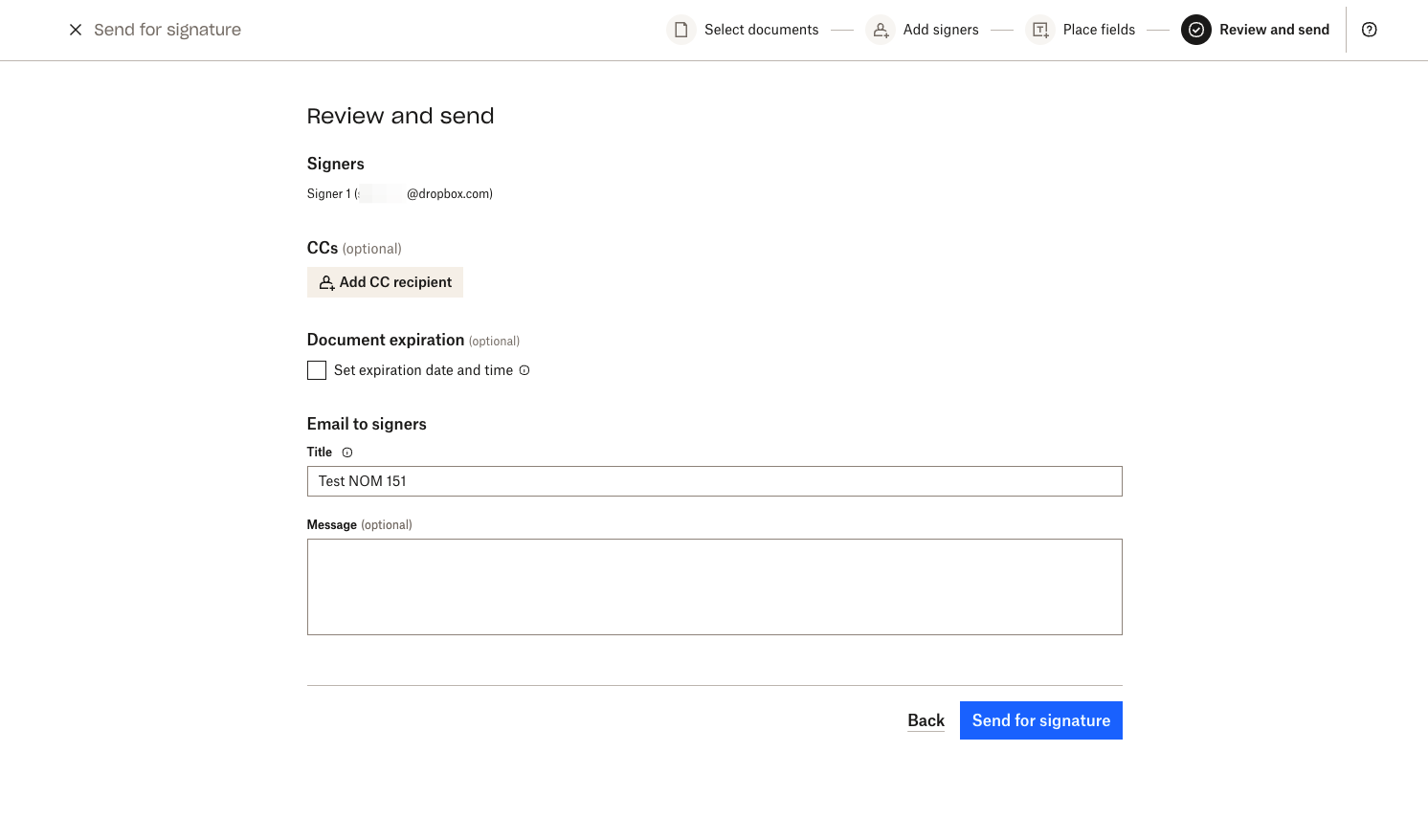 |
| 6. Once the Signer has completed the signature request, you can view the signature request in your "Documents" tab. The audit trail will include the status of your NOM 151 certification. |
|
| 6. Once the Signer has completed the signature request, you can view the signature request in your "Documents" tab. The audit trail will include the status of your NOM 151 certification. | 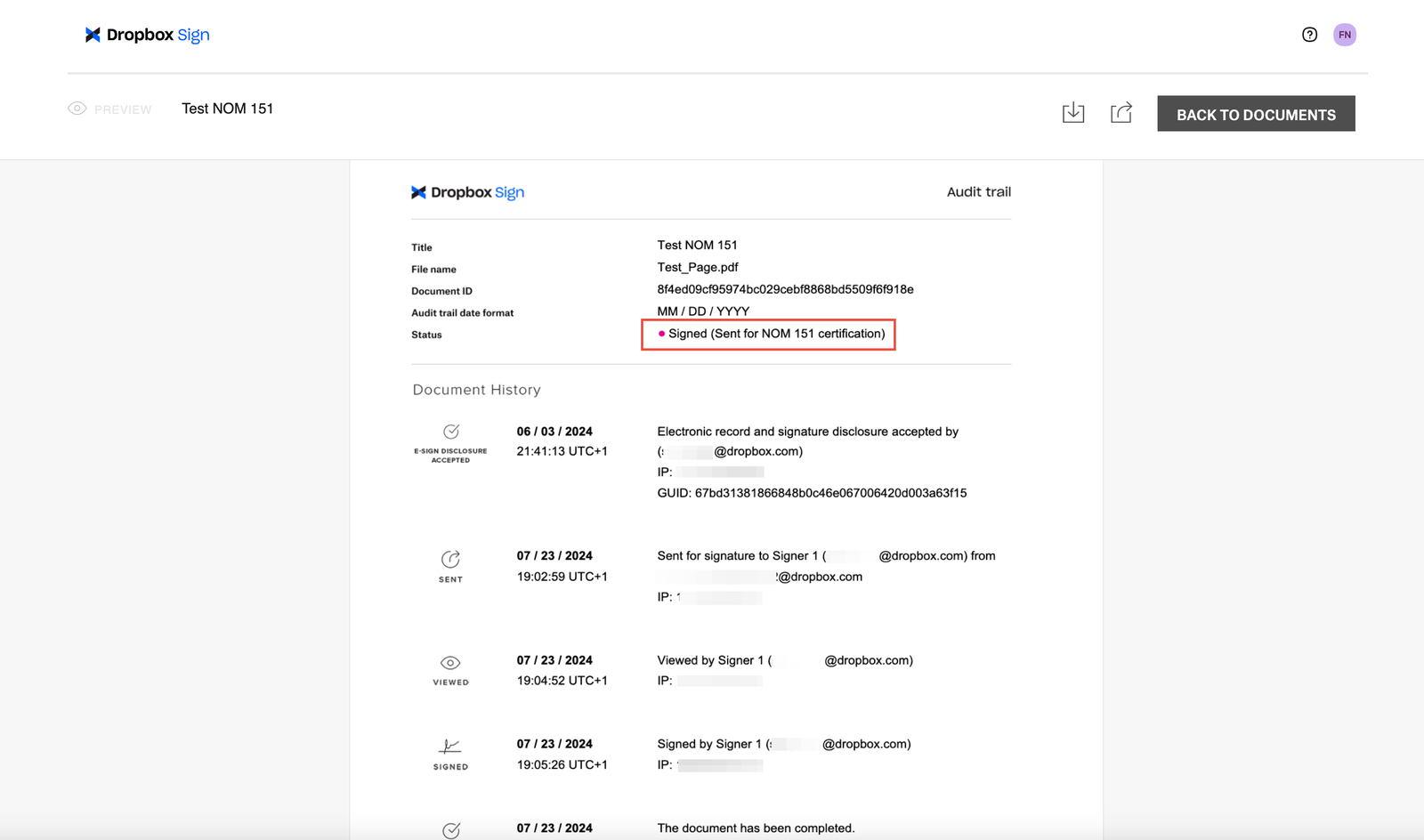 |
| 7. After the document has been certified for NOM 151, you'll be able to access the certificate by selecting the "⁝" (vertical ellipsis) next to the signature request on the "Documents" tab, followed by NOM 151. |
|
| 7. After the document has been certified for NOM 151, you'll be able to access the certificate by selecting the "⁝" (vertical ellipsis) next to the signature request on the "Documents" tab, followed by NOM 151. | 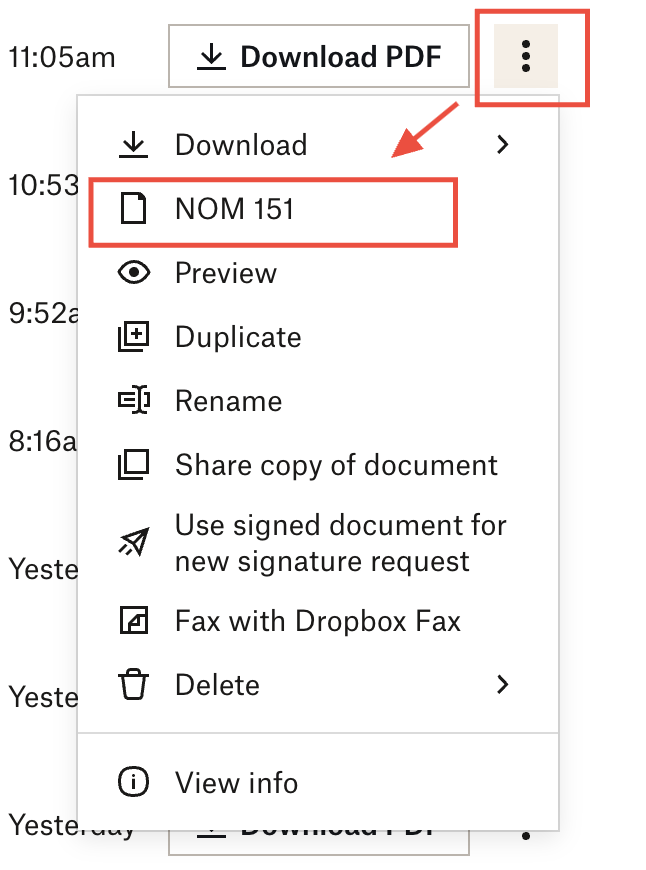 |
| 8. Follow the prompts to download and validate the document and its certificate on the PCS World website. |
|
| 8. Follow the prompts to download and validate the document and its certificate on the PCS World website. | 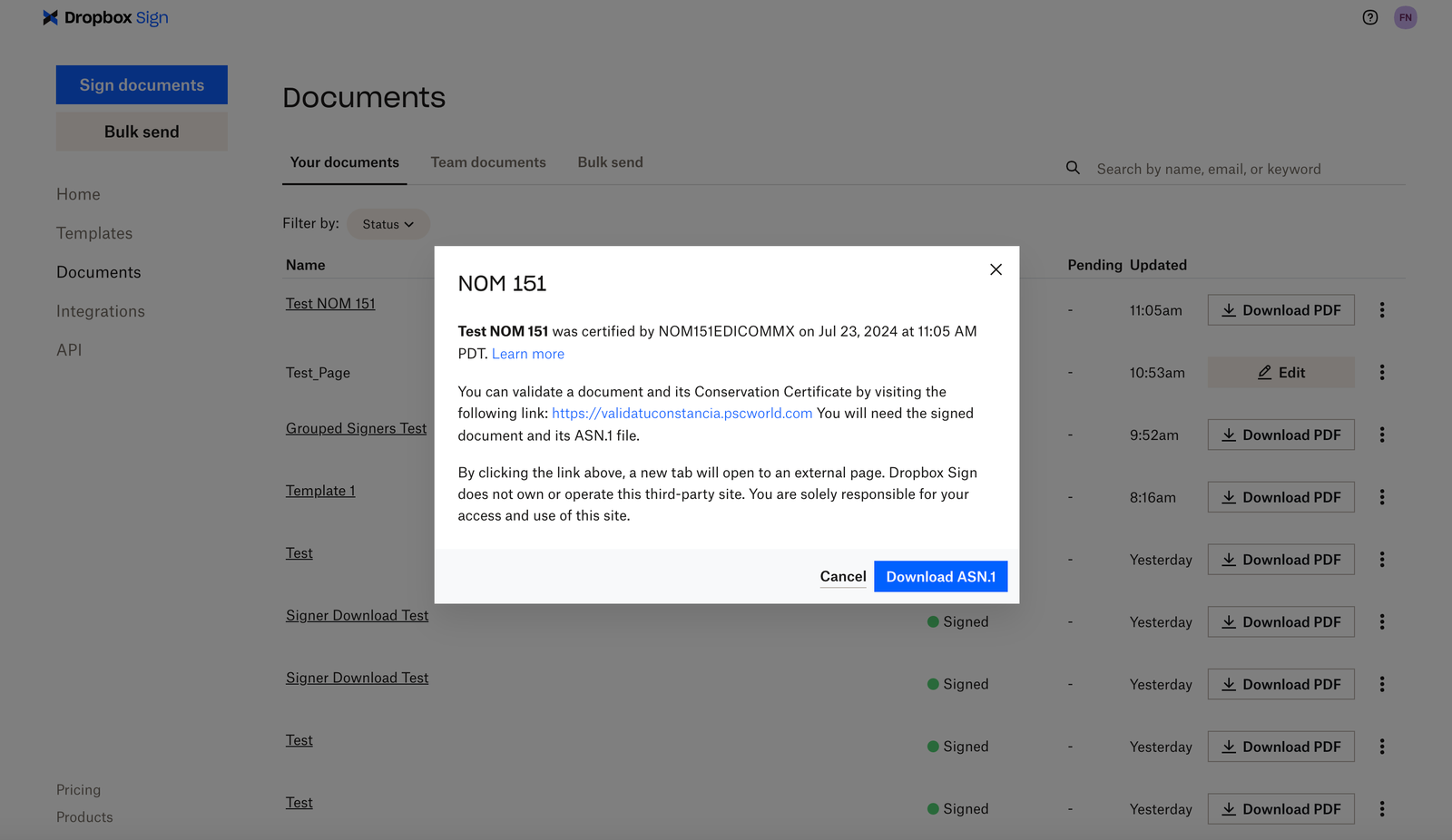 |
## API
### Supported API endpoints
* [/v3/signature\_request/send](/api/signature-request/send)
* [/v3/signature\_request/send\_with\_template](/api/signature-request/send-with-template)
* [/v3/unclaimed\_draft/create\_embedded](/api/unclaimed-draft/create-embedded)
* [/v3/unclaimed\_draft/create\_embedded\_with\_template](/api/unclaimed-draft/create-embedded-with-template)
## Non-embedded Workflows
| Steps | Images |
| -------------------------------------------------------------------------------------------------------------------------------------------------------------------- | ------------------------------------------------------------------------------------------------------------------------------ |
| 1. Create a non-embedded signature request. | Use one of these endpoints:
|
## API
### Supported API endpoints
* [/v3/signature\_request/send](/api/signature-request/send)
* [/v3/signature\_request/send\_with\_template](/api/signature-request/send-with-template)
* [/v3/unclaimed\_draft/create\_embedded](/api/unclaimed-draft/create-embedded)
* [/v3/unclaimed\_draft/create\_embedded\_with\_template](/api/unclaimed-draft/create-embedded-with-template)
## Non-embedded Workflows
| Steps | Images |
| -------------------------------------------------------------------------------------------------------------------------------------------------------------------- | ------------------------------------------------------------------------------------------------------------------------------ |
| 1. Create a non-embedded signature request. | Use one of these endpoints: - /v3/signature\_request/send
- /v3/signature\_request/send\_with\_template
|
| 2. Add the certification\_types parameter to your signature request, with the "nom\_151":true" option. Send the request for signature. | 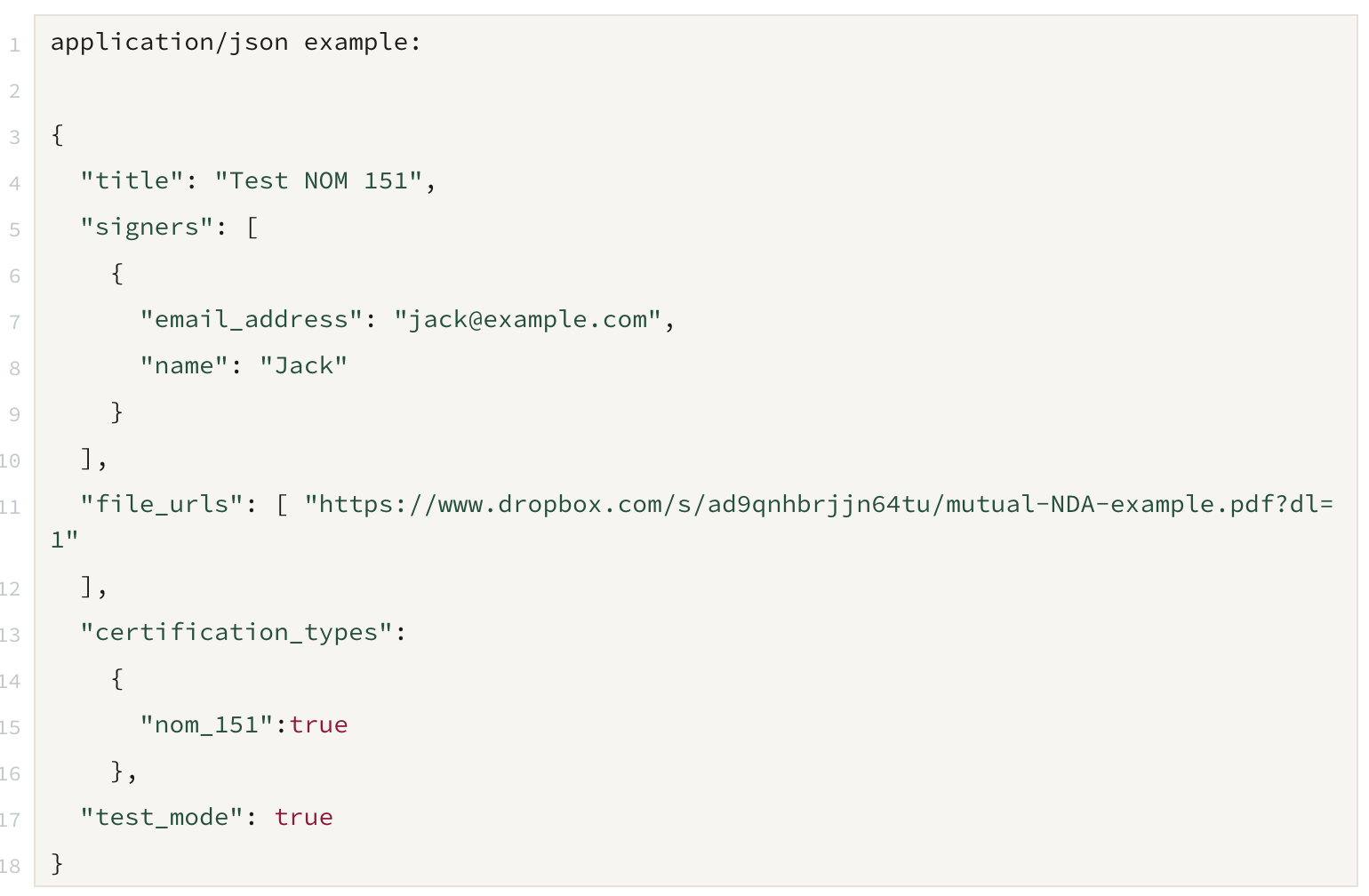 |
| 3. After all signers have completed the signature request, the document will be sent for NOM 151 certification and will be noted on the audit trail of the document. |
|
| 3. After all signers have completed the signature request, the document will be sent for NOM 151 certification and will be noted on the audit trail of the document. | 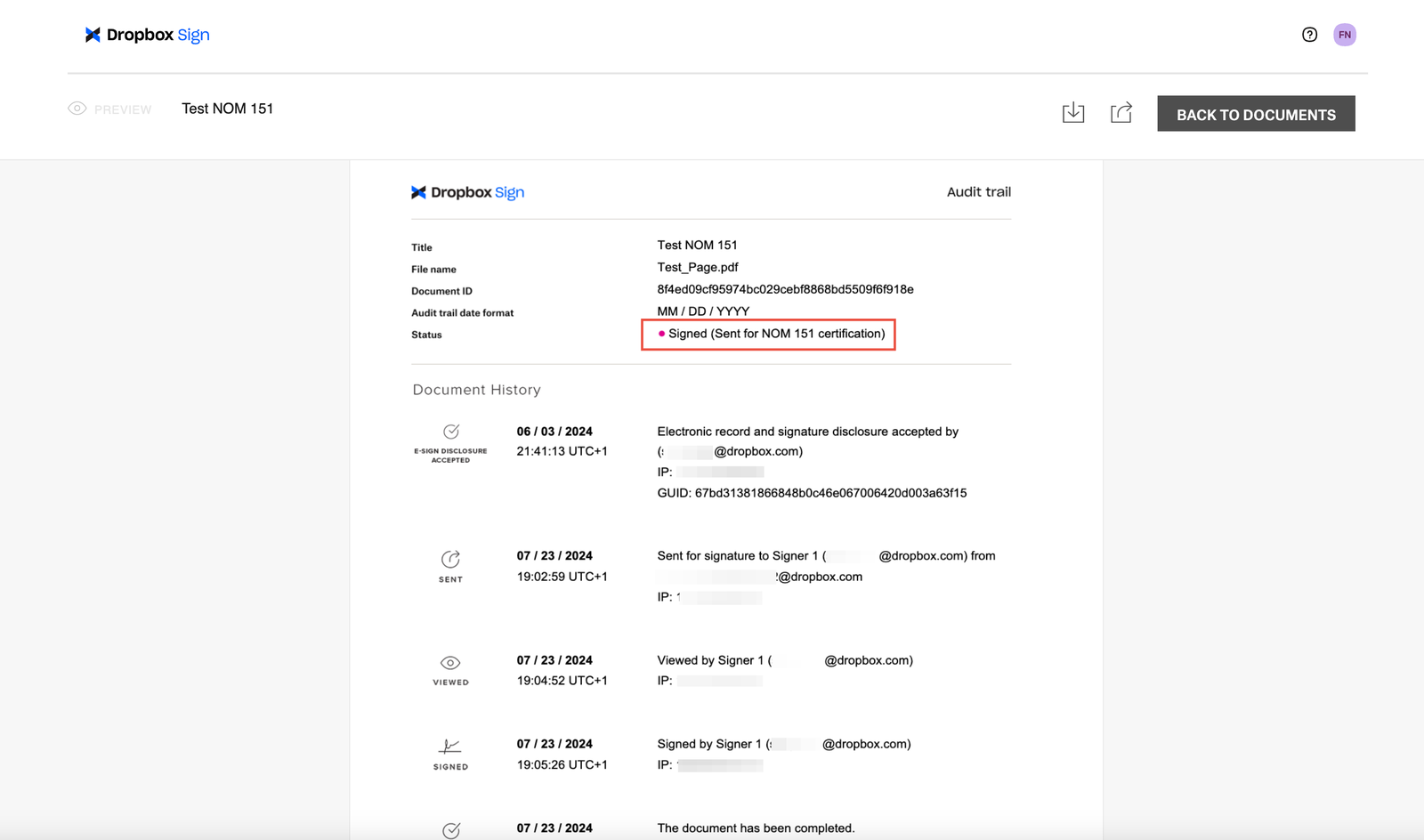 |
| 4. To view and download the NOM 151 certificate, you'll need to sign in to Dropbox Sign and select the "Documents" tab. |
|
| 4. To view and download the NOM 151 certificate, you'll need to sign in to Dropbox Sign and select the "Documents" tab. | 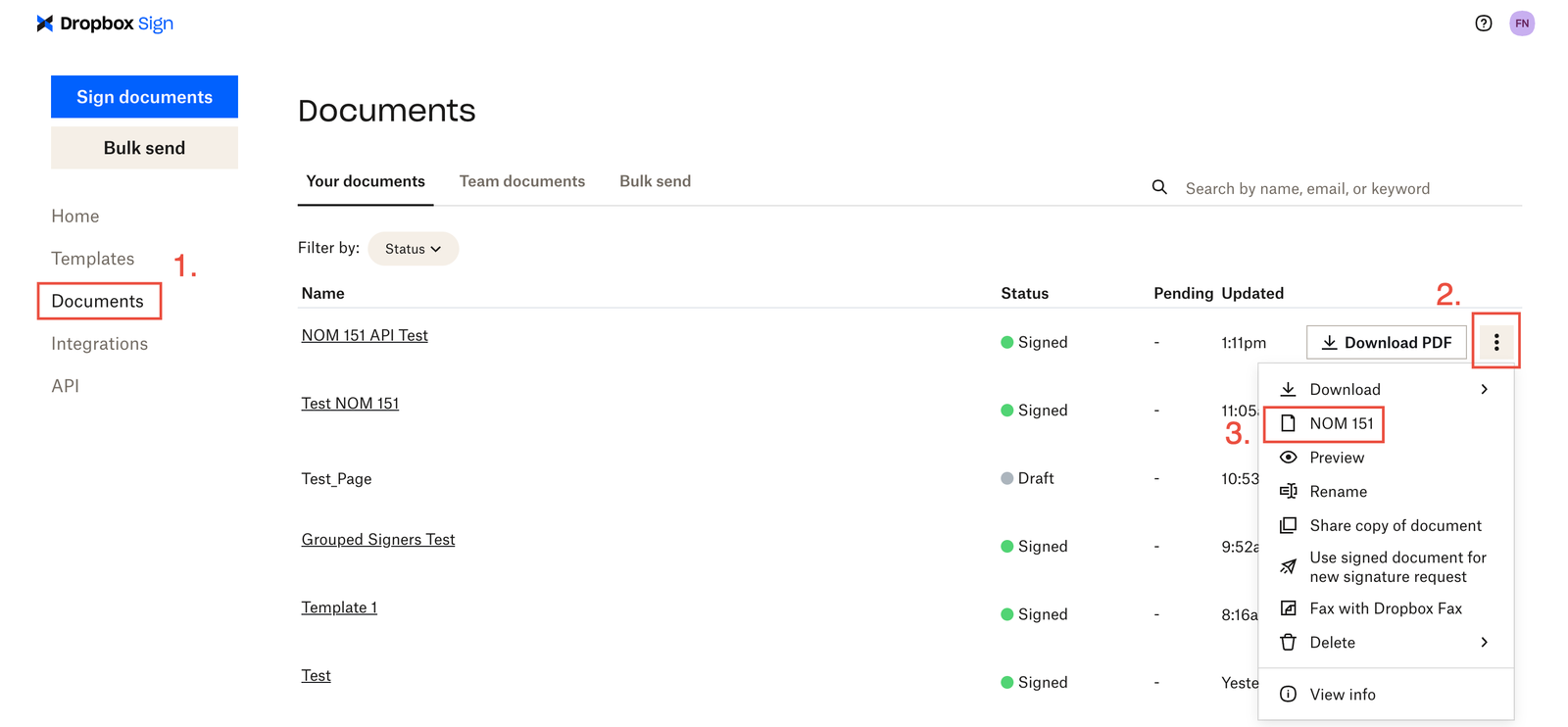 |
| 5. Select the "⁝" (vertical ellipsis) next to the signature request and then select NOM 151. |
|
| 5. Select the "⁝" (vertical ellipsis) next to the signature request and then select NOM 151. | 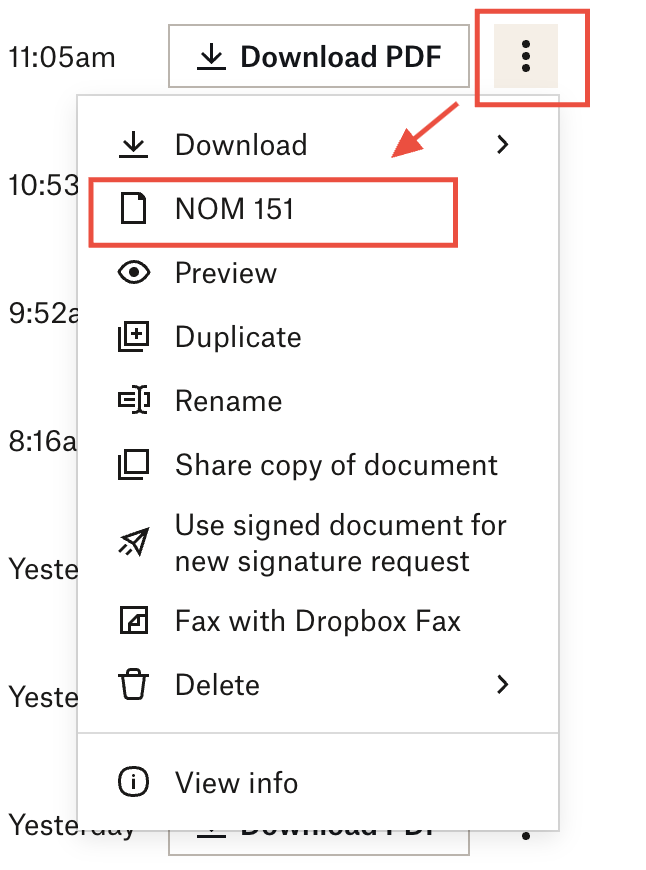 |
| 6. Follow the prompts to download and validate the document and its certificate on the PCS World website. |
|
| 6. Follow the prompts to download and validate the document and its certificate on the PCS World website. | 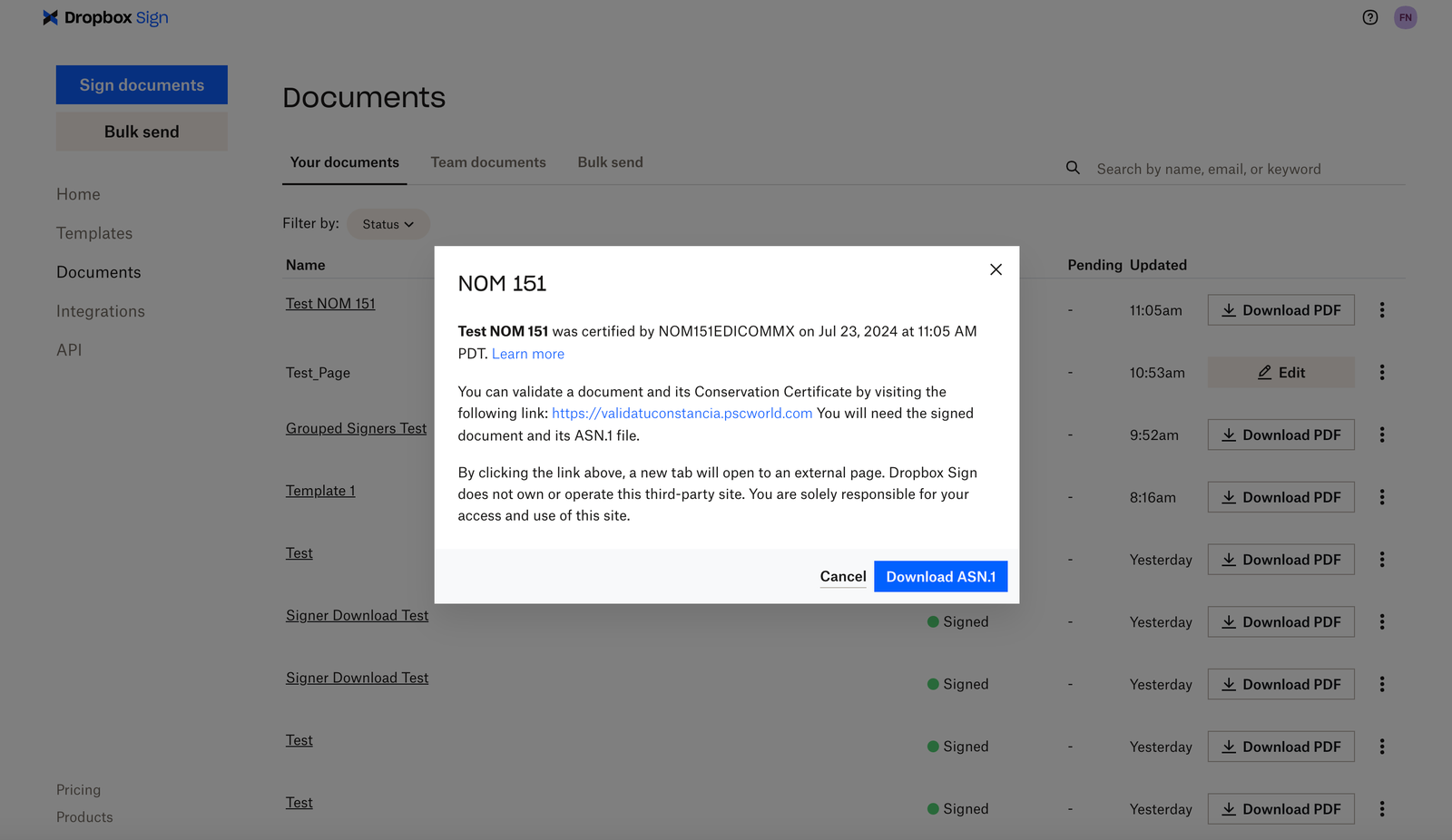 |
## Embedded Requesting Workflows
| Steps | Images |
| ---------------------------------------------------------------------------------------------------------------------------------------------------------------------------- | -------------------------------------------------------------------------------------------------------------------------------------------------- |
| 1. Set up an embedded unclaimed draft signature request. See the embedded request walkthrough for details. | Use one of these endpoints:
|
## Embedded Requesting Workflows
| Steps | Images |
| ---------------------------------------------------------------------------------------------------------------------------------------------------------------------------- | -------------------------------------------------------------------------------------------------------------------------------------------------- |
| 1. Set up an embedded unclaimed draft signature request. See the embedded request walkthrough for details. | Use one of these endpoints:- /v3/unclaimed\_draft/create\_embedded
- /v3/unclaimed\_draft/create\_embedded\_with\_template
|
| 2. When sending the initial API request, set the value of the force\_signer\_roles to true. This will enable the requester to see the signer step. | 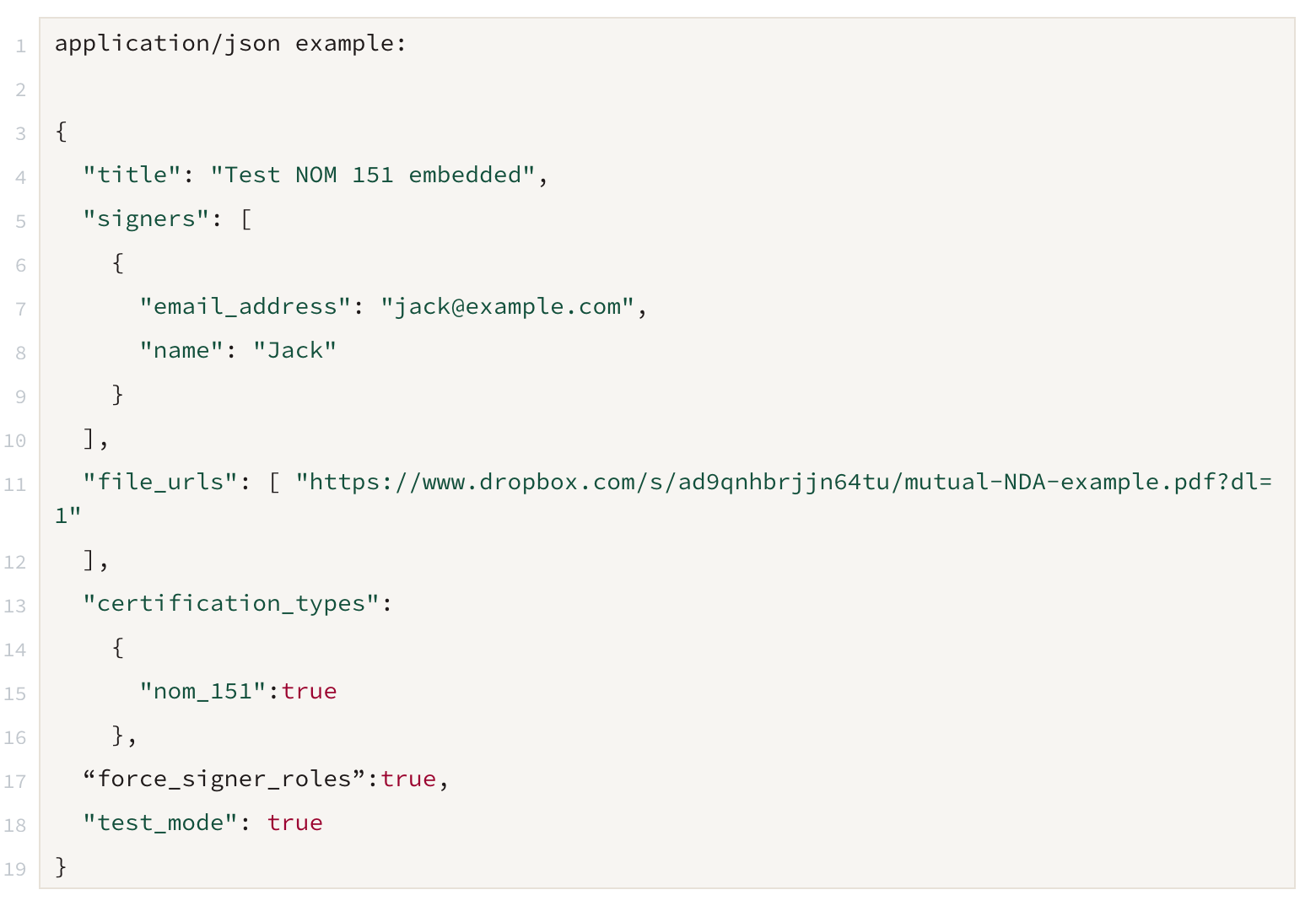 |
| 3. When the Sender is assigning a Signer, the option to select "NOM 151" will be present. Check the checkbox. |
|
| 3. When the Sender is assigning a Signer, the option to select "NOM 151" will be present. Check the checkbox. | 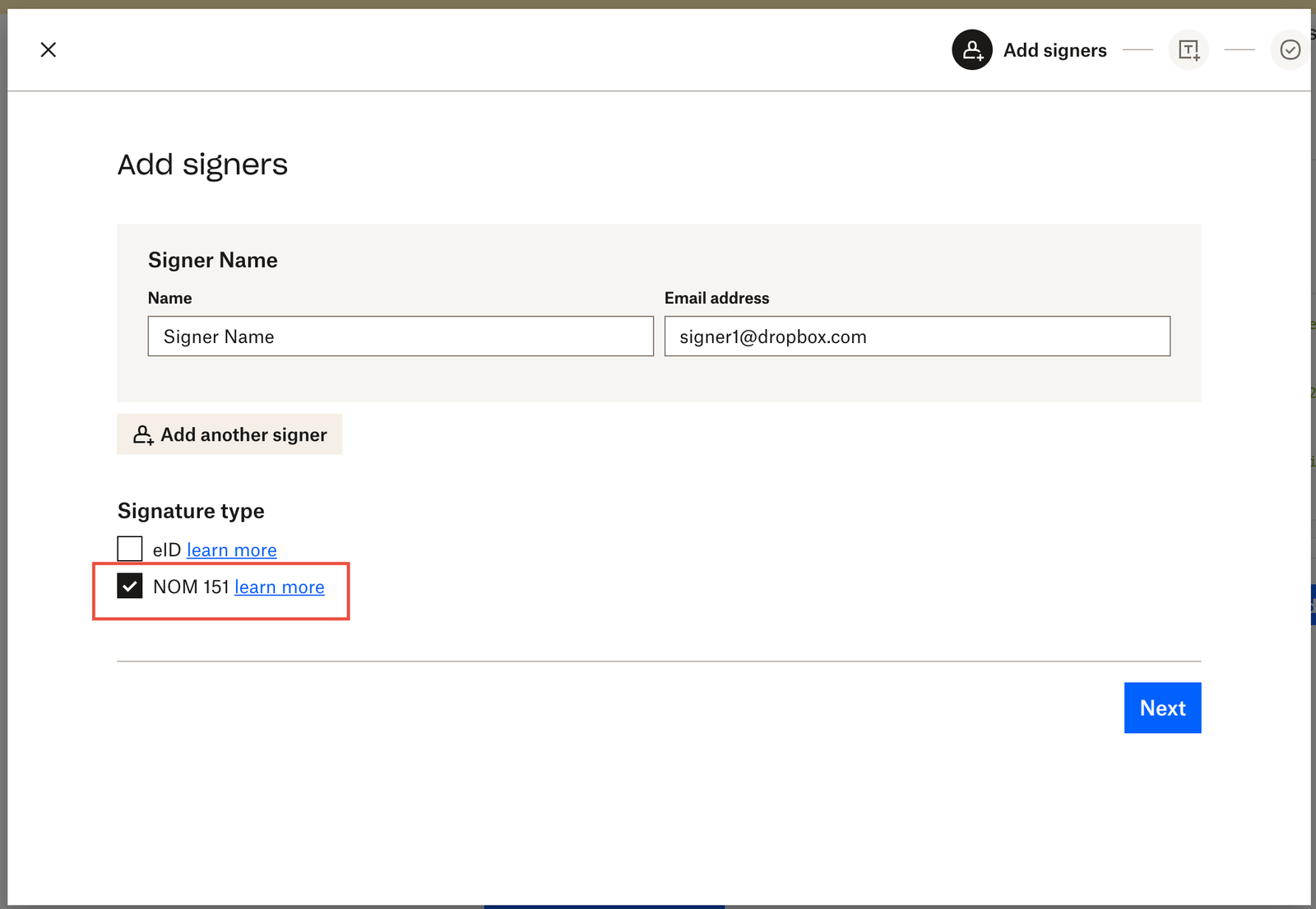 |
| 4. Complete the remaining steps to send your signature request. Follow steps 3-5 of the "Non-embedded workflows" section above to view your certificate. |
|
| 4. Complete the remaining steps to send your signature request. Follow steps 3-5 of the "Non-embedded workflows" section above to view your certificate. | 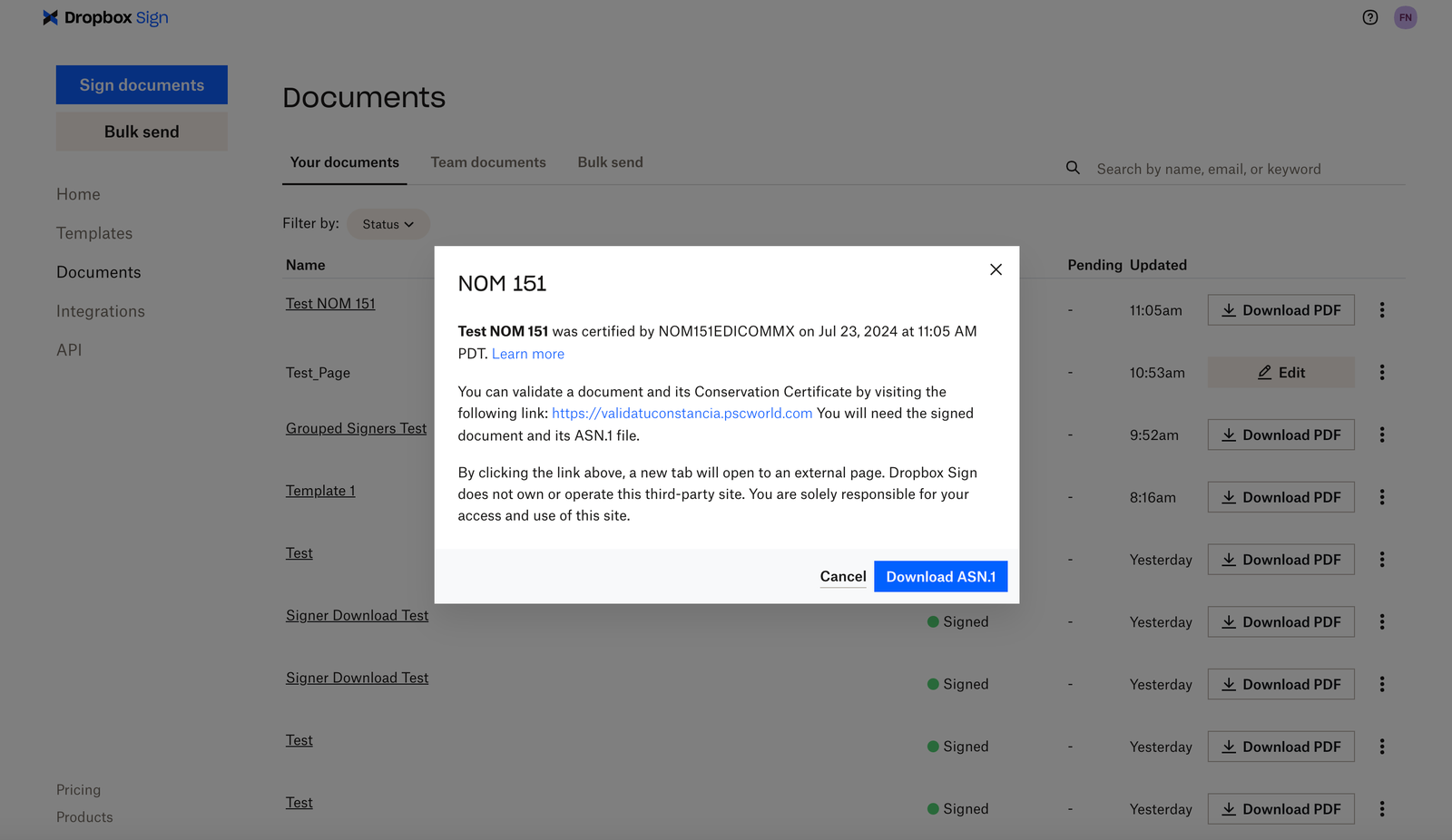 |
## FAQ
Yes, both eID and NOM 151 can be used for the same signature request. First eID verification will be completed and then the signature request will be sent for NOM 151 certification.
The NOM 151 process can vary on how long it takes to process. The process to generate a certificate will not start until all signers have completed signing their portion of the document.
In most cases, the certificate takes a few moments to be generated. Once completed, the "NOM 151" option will appear in the options dropdown for the signature request on the "Documents" tab of your account. Select this option to verify and download the certificate.
If the document does not have the option to view the certificate after 24 hours, please [open a request](https://faq.hellosign.com/hc/en-us/requests/new) with our Sign API support team and provide the signature request ID for further troubleshooting.
|
## FAQ
Yes, both eID and NOM 151 can be used for the same signature request. First eID verification will be completed and then the signature request will be sent for NOM 151 certification.
The NOM 151 process can vary on how long it takes to process. The process to generate a certificate will not start until all signers have completed signing their portion of the document.
In most cases, the certificate takes a few moments to be generated. Once completed, the "NOM 151" option will appear in the options dropdown for the signature request on the "Documents" tab of your account. Select this option to verify and download the certificate.
If the document does not have the option to view the certificate after 24 hours, please [open a request](https://faq.hellosign.com/hc/en-us/requests/new) with our Sign API support team and provide the signature request ID for further troubleshooting.